Moving Cards Between Columns
Cardboards are very useful for updating card statuses. To update an issue, use the drag-and-drop operation to move the card. The columns where you can drop will immediately change color to green and show the status name.
With Workflow
If the tracker of the card you are moving uses workflow, then the columns for the transitions available for that card will be marked with a green placeholder.
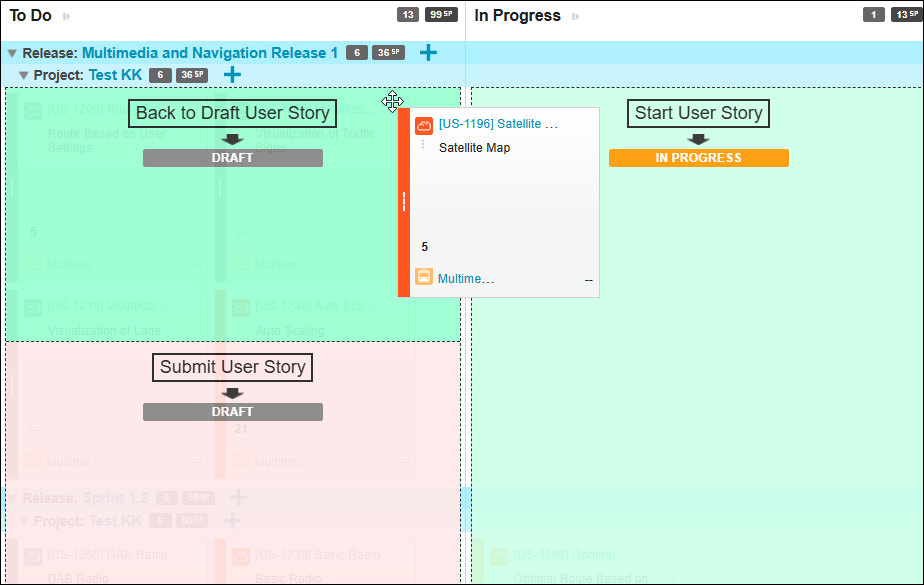
The green areas, also known as placeholders, represent the transitions available for the card.. By moving the card to one of these areas, you can update its status.
If the target status has any required fields then after dropping you will be shown an issue editor overlay where you can set those fields.
Without Workflow
If the workflow is not active on the tracker of the moved card, then you can drop to those columns where statuses are mapped from that tracker.
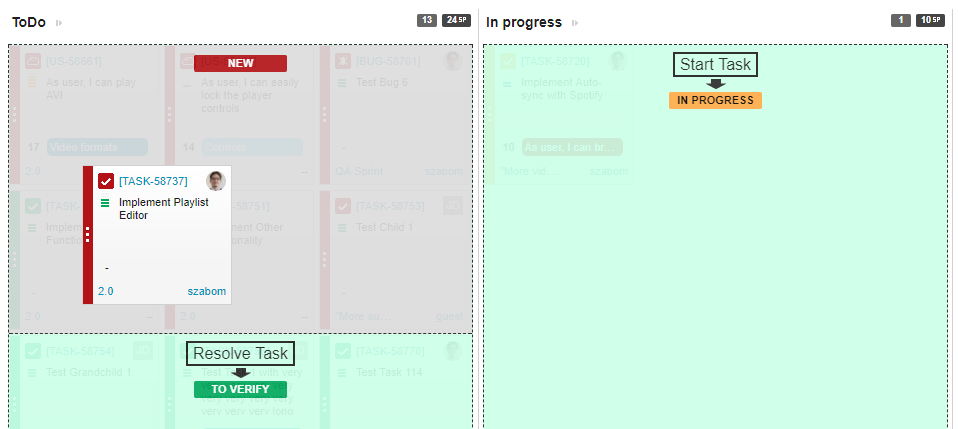
The green placeholders tell you the name of the status. A column can contain multiple placeholders.
The gray area shows original status of the card.