Import from DOORS
After completing the DOORS Bridge configuration, or at any time through Tracker > Configure > Import from DOORS, start a new import from the associated DOORS Formal Module. Importing from DOORS is an iterative process:
• The first/initial import is always a full import.
• All subsequent imports are incremental and can include objects, discussions, and comments:
◦ Created or updated since the last import, or
◦ Newer than the imported baseline, if the last import was a baseline import.
Keep the following in consideration when planning a migration from DOORS to Codebeamer:
• Baselines
• History
• Discussions and Comments.
Import baselines in the correct chronological order, and decide how far back to start the import.
You can selectively import baselines, but note:
• Skipped baselines cannot be imported later.
• Each DOORS Baseline contains only the module's history from the creation date of the previous baseline to its own creation date.
◦ Skipping a baseline removes this time segment from the imported history.
 |
If you configure automatic import at regular intervals, the scheduled import of the current (head) revision starts only after you perform the first manual import of the current (head) revision.
|
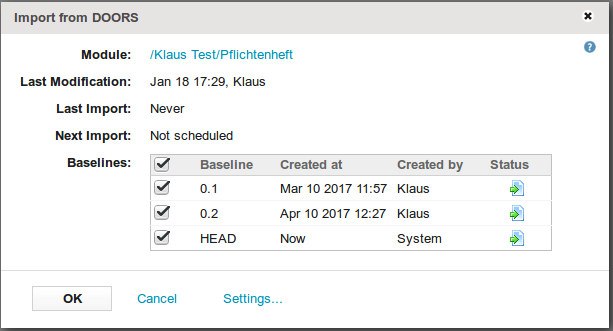
• If importable Baselines are available, all baselines are selected for import by default. Deselect any baselines you want to skip.
◦ Click OK to start importing the selected baselines in proper chronological order. Close the import dialog if no baselines are selected or can be imported. The import stops automatically when an error occurs or when all selected baselines import successfully.
◦ The system does not display import statistics automatically. To view them, click the name link of an imported baseline. The import dialog remains open after the import finishes or is canceled. To repeat a failed or canceled import, click OK again.
◦ Click Cancel to stop the currently running import, or, if no import is active, to close the import dialog.
◦ If no importable baselines exist and only the current HEAD revision of the DOORS Module is available, click OK to import the current module version. The system automatically displays either the import statistics (on success) or an error message (on failure). To close the dialog without importing click Cancel.
Because the initial import may include hundreds or thousands of tracker items, the statistics display only numerical summaries and not individual item details. However, for all subsequent (incremental) imports, the system provides detailed information about imported, updated, deleted, or failed data.

But for all subsequent/incremental imports, detailed information about imported, updated, deleted or failed data is available.

For example, if you click the number of updated objects, you can view which items were updated and the specific changes made.

The configured number of the most recent X imports can also be reviewed at any time after you click the History link in the Import from DOORS dialog.

Administrators can also look at the settings that were in effect for each of the imports.

You can also implement and deploy a Tracker Synchronization Listener, in order to be notified, whenever a Tracker is synchronized with DOORS.