Create a New Project from ReqIF Data
It is recommended to create a new project for importing ReqIF data. If the imported data pertains to customer requirements, it should only be qualified, commented on, and referenced within Codebeamer without any modifications. Access to the imported data should be restricted, and significant structural changes to the data model—such as tracker configuration—should be avoided if ongoing modification exchanges between the customer and Codebeamer are necessary. However, adding new fields to the imported trackers is permissible.
Follow the below given steps to import new requirements via ReqIF:
• Select New Project from the Codebeamer Projects menu.
• Select Create a new project.
• Attach the ReqIF file (*.reqif) or archive (*.reqifz) to import.
On the next screen, the name of the new project can be added, the ReqIF data can be mapped to import to target trackers in the new project. The object model found in the ReqIF file to import is displayed.
In Codebeamer, you can either choose a name for the Source of the ReqIF data, or the default name Origin is selected.
A list is also added to the Source field to see the header of the ReqIF files to import.

Codebeamer tries to group the ReqIF meta data by Specifications in the following cases:
• If a Specification Type is used exclusively by a single Specification, that Specification appears as a child named Tracker under the Specification.
• If items of a specific Item Type are used exclusively by one Specification, then the item type is shown as a child of the Specification, and it is automatically associated with the same target tracker than the Specification.
◦ If there is only one type of items in a Specification, then the name items are used for the item type. Example 2: IBM Rational DOORS.
◦ If a Specification contains multiple item types, each type is displayed with its own name. Additionally, a unique set of qualifiers must be defined to identify items of each type in the target tracker. Example 3: IBM Rational Requirements
The following screenshots are only examples. They may look completely different, depending on the data model of the ReqIF file to import:
Example 1: Sparx Systems Enterprise Architect
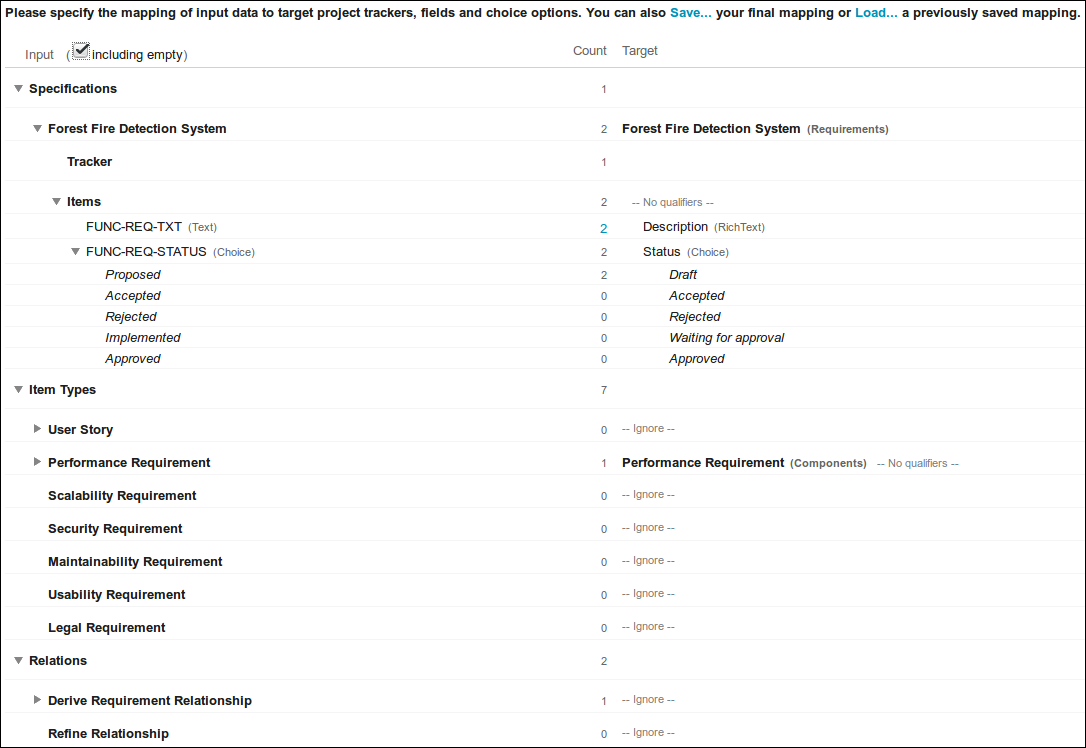
This example ReqIF file contains one Specification with an exclusive specification tracker type and two Items.
The following factors make the Items important:
• There is no extra attribute such as ReqIF.Name or ReqIF.ChapterName for the item name/summary, so the LONG-NAME of the SpecObject item is used as the item name/summary.
• There is an extra attribute for the item description, although its name is not the proposed name such as ReqIF.Text.
◦ If there is also no attribute for the item description, for example, Scalability Requirement. The DESC of the SpecObject item is used as the item description.
There are also additional item types, that are not related to any specification, for example User Story.
The User Story could be mapped to the default user stories tracker, but in the current example these are not mapped/imported (--Ignore--) as there are no items of this type.
Ignoring empty Specifications,Item Types or Relations, as well as empty attributes may not be appropriate if the imported data is intended to be edited.
For example:
• Add new tracker items.
• Set values for (empty) fields.
• Add new item associations. And then re-export the modified data.
Example 2: IBM Rational DOORS.
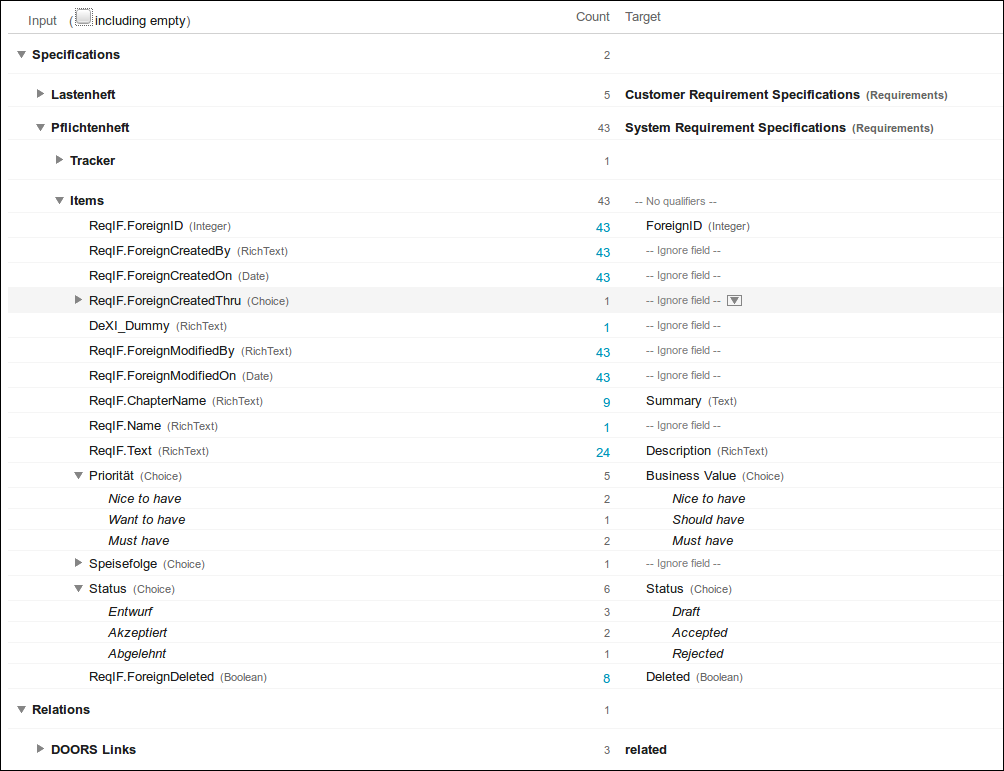
In ReqIF files produced by IBM Rational DOORS, typically each Specification has its own type and only contains Items of a single type.
Because the association between specification and item type is only defined indirectly via: > > > , the item type of an empty specification is undefined, and will be listed under the non-exclusive/shared item types.
DOORS requirements also have each of the following along with lots of other attributes:
• ReqIF.ChapterName
• ReqIF.Name
• ReqIF.Text
But whether the attribute actually has a value, depends upon the type of the following requirements:
• A DOORS Heading has a value for the ReqIF.ChapterName, but ReqIF.Name and ReqIF.Text are typically empty.
• Non-Heading types, for example requirement have a value for ReqIF.Text, but both, ReqIF.ChapterName and ReqIF.Name are typically empty.
If the mapping of ReqIF attribute to target field is ambiguous, for example both ReqIF.ChapterName and ReqIF.Name could be mapped to Summary, then the number of items can be used, where the field has a value, and the list of the first 10 field values, to find the best match.
In the example above, only one item has a ReqIF.Name, but nine items have a ReqIF.ChapterName. So, you should use ReqIF.ChapterName for the Summary.
Example 3: IBM Rational Requirements

In ReqIF files produced by IBM Rational Requirements, Specifications typically contain items of different types, for example,. Heading, Information, Requirement etc.
Because all these items are mapped to the same target tracker, each item type must have a unique set of qualifiers, to identify items of this type in the tracker.
For example, Heading items are those items in the target tracker, where Type == Folder.
Specifications can also refer to config items, that are not part of the Specification itself, for example, Actor.
These separate Item Types should typically be mapped to appropriate config item trackers, for example, Actor.
In IBM Rational Requirements, all item types have a ReqIF.Name and a ReqIF.Text, that should be mapped to item summary and Description.
The item type Heading also includes the ReqIF.ChapterName attribute; however, its value is identical to ReqIF.Name and can therefore be safely ignored.