Configuring Cardboards
This section describes the configuration of cardboards.
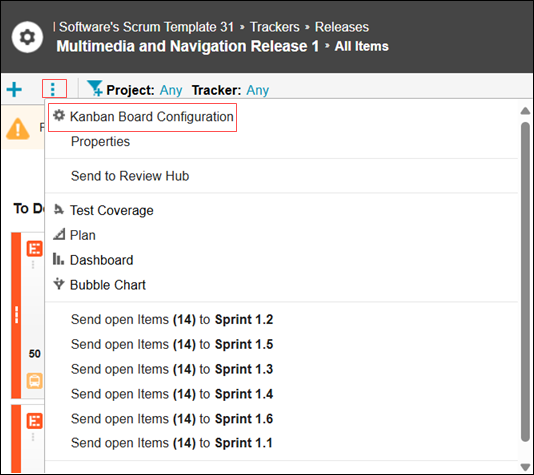
To access the configuration page, click the context menu in the Kanban Board view of the release item and select the .Kanban Board Configuration option. This opens the Column Configuration tab of the Kanban Board by default. You can set the Work in Progress limits by specifying the MIN and MAX values and the New column labels for each cardboard. Click the Insert a new column after this icon to configure a new column.
 |
• The Kanban Board Configuration menu is available only if you have the Project Admin permissions.
• The changes you make on this page affect only your current cardboard.
|
The columns in the Column Configuration tab are the same as those on the cardboard, except for the column Done. You cannot configure the Min and Max values. in the Done column.

For each column, you can set the minimum and maximum Work in Progress limits. If a column on the cardboard has less cards than the MIN or more than the MAX, you will receive a OVERLOADED warning.

If you leave a field on the configuration page empty that means that there is no limit for that column.
You can configure the column label, so the cardboard can use the column names that you specify here.
A third configuration option labeled as Show Work Items from child Sprints on this Kanban Board is available by clicking the Card Configuration tab. This is checked by default. It indicates that the cardboard can display not just the items linked to the release but also issues linked to one of the child releases. Click the checkbox to disable this option.
In addition to the configuration of these values, the configuration page provides some useful information. Each column contains a list of tracker statuses mapped to that column. You can change these mappings on the configuration pages of the trackers.
You can configure the information displayed on the cards using the Kanban Board Configuration menu. You can enable or disable different sections of the card.

Changing Number of Columns
In Column Configuration, new columns can be added and deleted, except for the four built-in columns. The Cardboard must have at least four default columns.
There is a default maximum limit of ten on the number of columns. If you exceed this limit, an information box at the top of the configuration screen notifies the user. To change this maximum limit, you can use the "interactive" section under Application Configuration, as shown in the following example:
"interactive":{
  "cardboardMaximumColumns": "15"
}