Document Edit View
This page provides information on Document Edit View. Document Edit View is available on all trackers where:
• The Document View is available.
• The current user can edit items.
In this view you can edit the fields inline. The view opens on the right of the item and is presented in the form of a table. This feature makes it suitable for the fast editing of items.
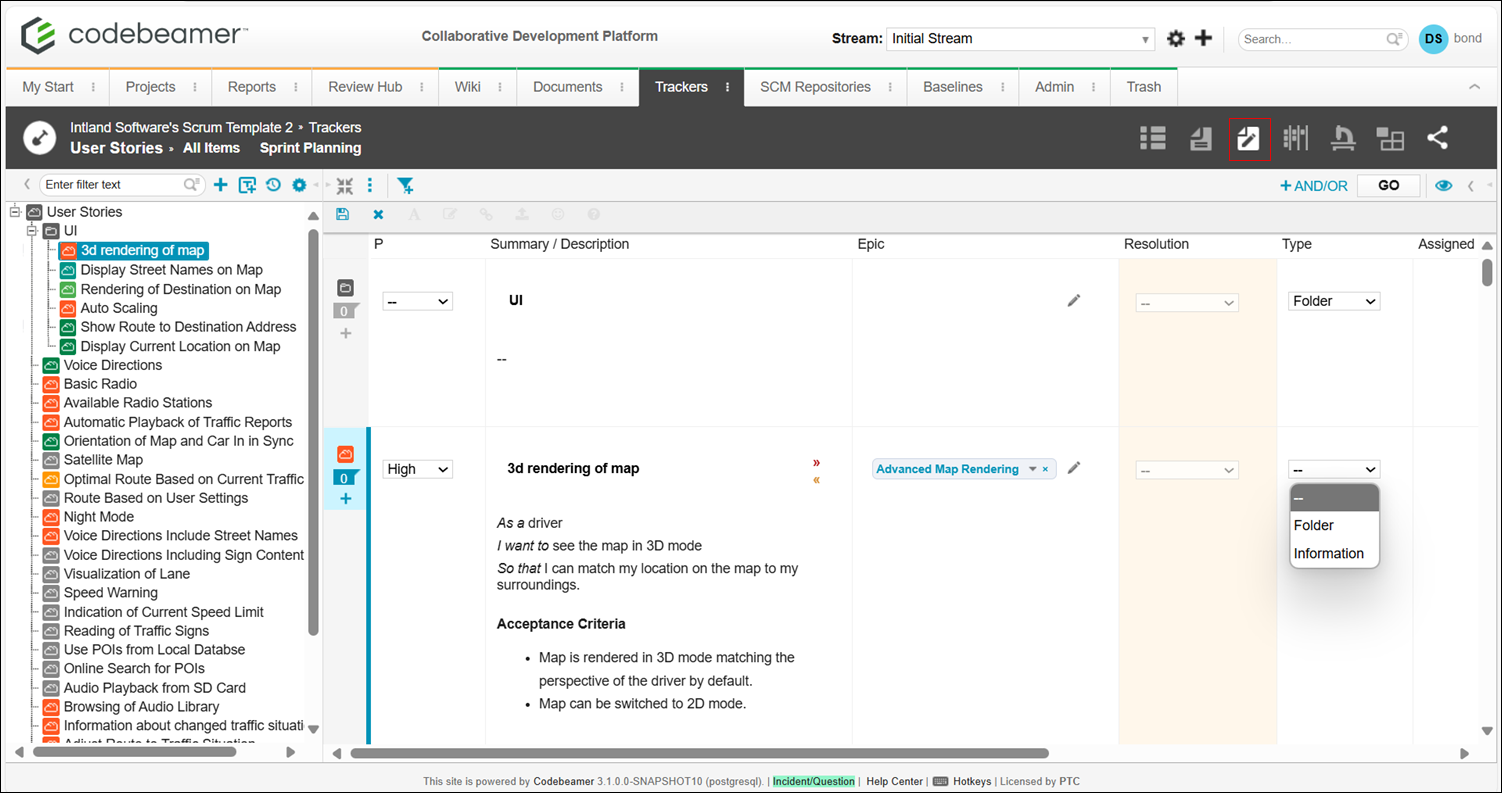
The Document Edit View is accessible through an icon on the action menu bar:

Clicking the icon opens the view with the default fields. By default the view displays the same columns as the table view.
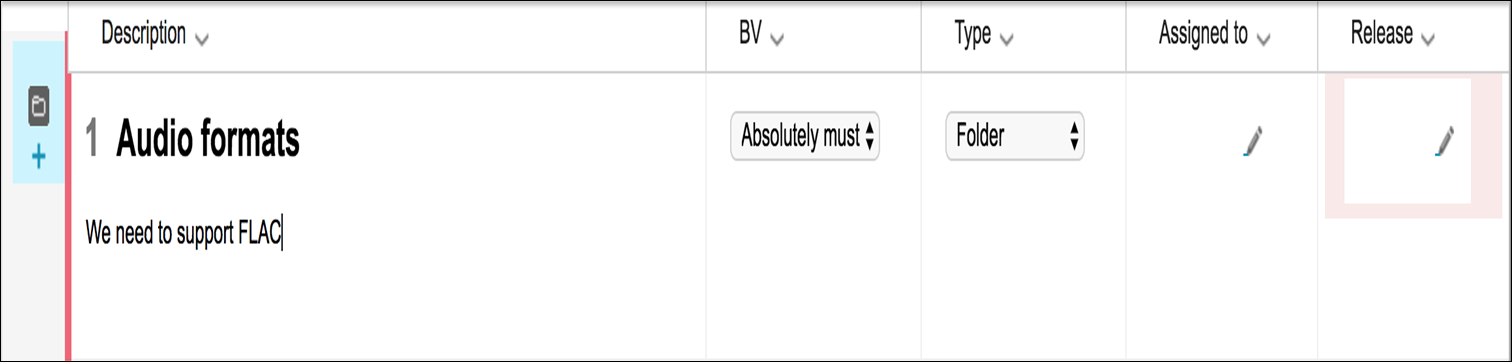
Each field that you have access to is immediately editable. After a field is modified the left border of the row is set to red and all mandatory fields for the item are also marked with a reddish background.
You can edit multiple items one by one. After you finish your modifications click Save to save the changes all at once.
Handling fields
As stated above the Document Edit View shows the same fields as the table view by default. One important difference is that the mandatory fields are always visible even when they are missing on the table view. This is because you cannot save an item without setting its mandatory fields. The other difference is that the Description field is also always visible. You cannot remove it even from the context menu.
You can add new columns using the context menu of the column headers.
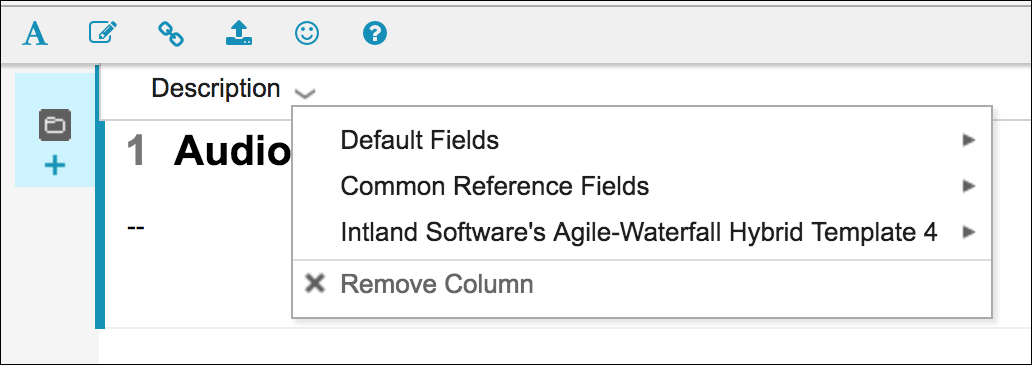
The columns can also be reordered by drag and drop.
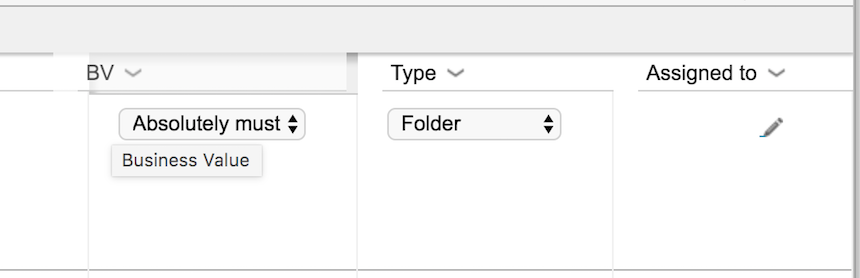
After adding or removing columns or changing their order, the new column set can be stored, using the filter menu.
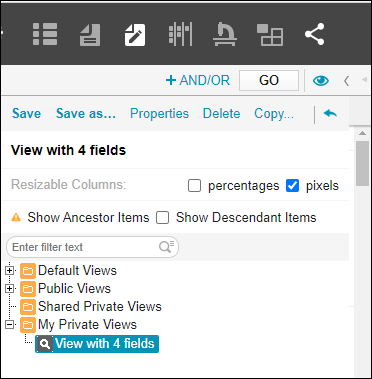
On this menu you can also select previously defined views. This reloads the page with the filters and the columns defined in the private view.
In Document Edit View, fields which cannot be edited directly cannot be added as columns. This includes the Status field too as changing it involves using transitions.

Since Codebeamer 10.1 you can add shared fields to the table. For details, see: Reports.
Limitations in the Document Edit View
• Traceability Document View is disabled by default on Document Edit View.
• To improve readability, pixel-based Resizable Columns can only have a column width of 200 pixels or greater.
Hotkeys
The below table contains keyboard shortcuts which you can use to easily navigate between the cells.
|
Hotkeys
|
Description
|
|
TAB/ALT+RIGHT ARROW
|
Next field of the current row or first field of the next row.
|
|
SHIFT+TAB/ALT+LEFT
|
Previous field of the current row or last field of the previous row.
|
|
ALT+UP ARROW
|
Same field of the previous row, one cell up.
|
|
ALT+DOWN ARROW
|
Same field of the next row, one cell down.
|