Swagger v3 Tracker Tree Endpoints
From Codebeamer release 2.1, the following Tracker Tree endpoints are available:
• List Tracker Tree - GET/v3/trackers/tree
• Update Tracker Tree - POST/v3/trackers/tree/update
List Tracker Tree
The List Tracker Tree endpoint returns the trackers of a project based on the projectId and shows the hierarchy in which the trackers are structured.
This endpoint returns the trackers of the relevant project in a hierarchical structure. It also shows the name of the folder, if any, containing the trackers.
If the tracker hierarchy is changed on the user interface, the updated structure is returned after executing the request again. If you hide a tracker on the user interface and execute the request, the hidden tracker is not returned among the other trackers in the response.
To list the hidden trackers, enable display of the hidden trackers on the user interface and execute the API request again.

In such cases, the hidden tracker is listed in the response within the new folder Hidden Trackers.
If streams other than the initial stream are available, specify the workingSetId of the relevant stream before executing the request.
URL
GET /v3/trackers/tree
Input Parameters
Parameter | Description |
|---|---|
projectId | The ID of the project. |
workingSetId | The ID of the stream. |
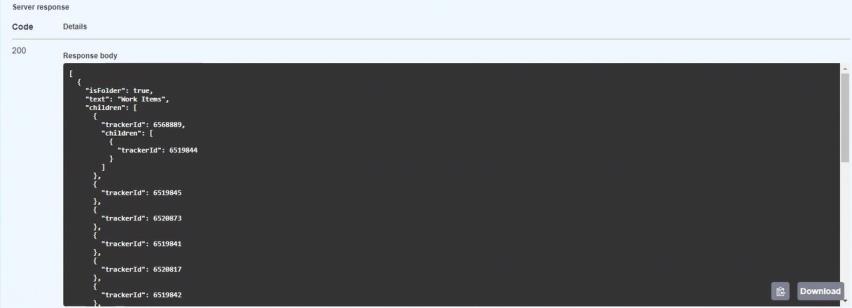
Response Body Example
Update Tracker Tree
Use the Update Tracker Tree endpoint to change the content or tracker hierarchy of a project.
URL
POST /v3/trackers/tree/update
Input Parameters
Parameter | Description |
|---|---|
projectId | The ID of the project. |
workingSetId | The ID of the stream. |
Changing the structural hierarchy of the trackers within a project
1. Get the hierarchical structure of trackers of the relevant project using the GET/v3/trackers/tree endpoint.
2. Copy the JSON from the Response body.
3. Paste the JSON to the Request body of the POST/v3/trackers/tree/update endpoint.
4. Implement the necessary structural changes such as : creating or deleting folders and, moving the trackers to different folders.

When the JSON in the request body is modified and the request is executed, reload the user interface to view the changes.
Example: Changing the Structure or Hierarchy
Consider that Tracker A is structured above Tracker B on the user interface.
To change the order of trackers:
1. Exchange the trackerId of Tracker A and Tracker B and execute the API request.
2. Reload the user interface.
Tracker B is now structured above Tracker A in the Tracker tree.
Tracker A and Tracker B are on the same level in the tracker hierarchy.
Making Tracker B with trackerId: 56789 the child item of Tracker A with trackerId: 1234 :
{
"trackerId": 1234
"children": [
  {
    "trackerId": 56789
  }
]
}
Example: Creating Folders
To create a new folder and add items to it, use the following structure:
{
   "isFolder": true,
   "text": "Work Items",
   "children": [
     {
        "trackerId": 5678
     }
   ]
 }
◦ isFolder": true - Use to create a new folder.
◦ text": Work Items - The name of the folder to create.
◦ children - Add the relevant items to the folder as child items.
Deleting Items of Folders
To delete an item or folder from the tracker tree, delete the relevant section from the JSON.