State Transitions
Trackers for which Workflow is enabled have State Transitions, that define a Finite State Machine for the tracker items.
This allows control of the tracker item lifecycle, business processes, and associated workflow.
A customer or test engineer can enter items into a tracker, and one developer or all developers that belong to a role are automatically notified. A developer can fix the issue, associate source code changes with the issue, and set the issue status to fixed. Generally, to associate a source code change with an issue, a commit is associated with the issue. The project roles of team members determine which notifications they receive in this process.
State
A state comprises all field or attribute values of a tracker item. The current state of a tracker item is defined by the value of the Status field. A state transition is a change in the value of the Status field.
The States of a Tracker Item are the defined values or the choice options of the Status field. The default status options for trackers of the type Task are the following:
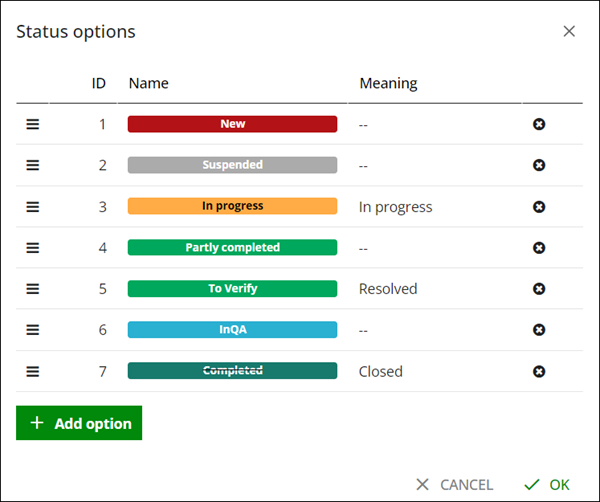
The order of the status options shown above reflect the position of the statuses in the lifecycle of the tracker items.
State Transition
A change to the value of the Status field is called a State Transition
If a workflow is enabled for a tracker, the status changes are allowed when a state transition from old to new status is defined and the current user has permission to execute that state transition.
If a workflow is not enabled for a tracker, the tracker items still have a status, but there is no control over which status changes are allowed and who can make them. The state transitions that are allowed for items of a tracker are defined on the State Transitions tab of the tracker's configuration screen. For example:
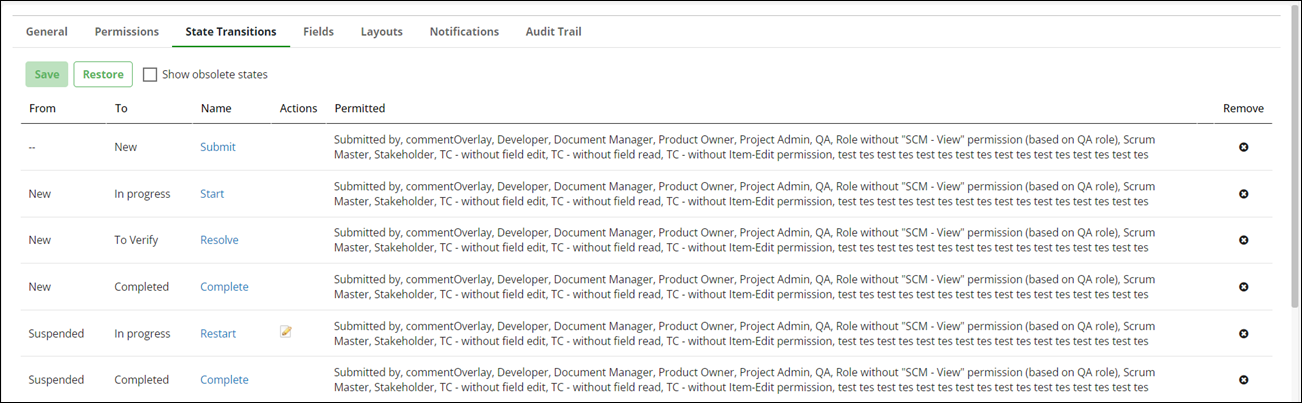
You can select the Show obsolete statuses to see all states. If a state is obsolete, the name contains the suffix Obsolete.
The State Transitions also visualize as a State Diagram:

To define a new state transition, you can select the State Transition option from the More list at the bottom of the State Transition table. Or you can create a new state transition. Click the transition lines in the workflow diagram. A screen appears in which you can enter the transition specification.

State Transition
A change to the value of the Status field is called a State Transition.
If a workflow is enabled for a tracker, the status changes are allowed when a state transition from old to new status is defined and the current user has permission to execute that state transition.
If a workflow is not enabled for a tracker, the tracker items still have a status, but there is no control over which status changes are allowed and who can make them. The state transitions that are allowed for items of a tracker are defined on the State Transitions tab of the tracker's configuration screen. For example:
You can select the Show obsolete statuses to see all states. If a state is obsolete, the name contains the suffix Obsolete.
The State Transitions also visualize as a State Diagram.
To define a new state transition, you can select the State Transition option from the More list at the bottom of the State Transition table. Or you can create a new state transition. Click the transition lines in the workflow diagram. A screen appears in which you can enter the transition specification.
You must specify the From and To status for the transition:
• Because a transition is a status change, From and To must be different.
• There can only be one transition with the same From and To status per tracker.
There are two special From status values:
• --: This value represents the unknown/undefined/non-existing status of a tracker item.
• ***: This value represents any status except the To status.
There should be exactly one state transition from Undefined/-- to a defined/initial status. This is the initial state transition, that controls the process of creating new tracker items:
• All newly created items have the specified initial status.
• Only users with permission for the initial state transition can create new items.
They must also have Item - Add permission for the tracker.
If there is no initial state transition at all, creating tracker items is not allowed. For legacy reasons, it is possible to define multiple ambiguous state transitions from Undefined/-- to different states.
Newly created items end up in no defined status ("Undefined/--").
State transitions also have the following:
• Name: The name is required to define the state transition. There can be multiple transitions with the same name.
• Description: You can include a description for the state transition. For example, you can add instructions on how to use or configure the transition.
• Permitted: Defines the participants, such as Item submitters or assignees, and roles, such as Members in the developer role, who have permission to execute a status change.
• Condition: Defines to which tracker items this transition applies.
• Guard: It acts as a gate keeper that allows transitions, only if the subject tracker item matches specific criteria.
• Actions: Define an action that is automatically triggered when there is a state transition. For more information, see Workflow Actions.
State transitions can be hidden so that they do not occur in the workflow or in the State Transitions tab but are valid status changes. The names of hidden transitions are shown as gray instead of blue.
To edit an existing state transition, click the transition name or choose Edit from the context menu. To delete a defined state transition, select Delete from the context menu.
Transition Condition
You can set a transition condition to define if the transition applies to a tracker item. A default condition is Expression.
It allows you to define an expression that can be evaluated against a tracker item and must be true or false, whether or not the transition applies to the item. For more information, see Computed Fields.
For example, allow this transition only if the Story Points field of the item has a value less than seven:
storyPoints < 7
One default condition is Leads back to previous subject item status. This condition allows a transition if it returns the item's status to its previous state. You might want to use this condition for transitions from special parking statuses, especially when multiple transitions can lead to this status, and there are various transitions leading out of it. This approach restricts an outgoing transition to occur only if the status was entered through a transition in the opposite direction.
If you need conditions that exceed the expression language capabilities or need to consider other context information, such as the HttpServletRequest to check region, locale or user agent.
Transition Guard
Each transition can be associated with a guard, which allows the transition to pass if the subject tracker item matches specific criteria.
A transition guard is a tracker view, whose condition is evaluated against the tracker item which is the subject of the state transition.
The Guard selector shows all available tracker views in the current context. If no suitable guard exists yet, you can create a new one. Click the Add link on the right hand side of the Guard list to create a new guard.
For example, a guard is named “All approvals are finished and accepted” in the image below.
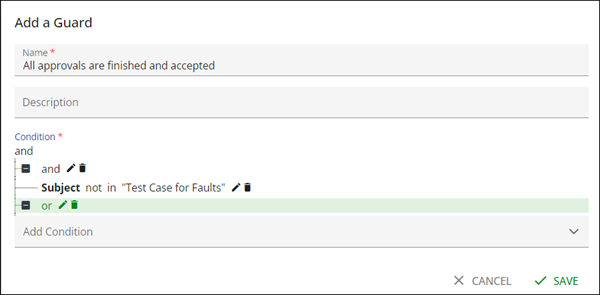
The new guard is stored as a tracker view of the type Table with the configured Condition and Default Columns and Sorting.
You can edit the currently selected guard by clicking the Edit link. You can use also suspected reference guards:
• Has Suspected Link.
• Has Upstream Suspected Link.
• Has Downstream Suspected Link.
 |
Guards evaluate stored field values which may differ from what is rendered on the user interface. For example, wiki content is stored as its markup code potentially containing formatting and escape characters. That has to be taken into account when defining guard conditions.
|
Transition Actions
Multiple Workflow Actions can be associated with a state transition.
The Fields to Update from older Codebeamer X releases are now also actions:
 |
Old actions implementing StateTransitionAction or based on DefaultWorkflowListener are no longer supported in Codebeamer X
Any attempt to deploy such old actions via ~/CB-.../tomcat/webapps/cb/WEB-INF/classes/my-applicationContext.xml may cause the Codebeamer X startup to fail.
|
If you had developed custom actions, you should first check, whether one of the new parameterized Workflow Actions can be used for this task:
• Assign staff according to selected target projects
Only if no such action exists, you should try to migrate your custom action. See instructions here.