Using the Microsoft OneDrive Integration
The following image shows the Codebeamer X Microsoft OneDrive integration in a document tracker:
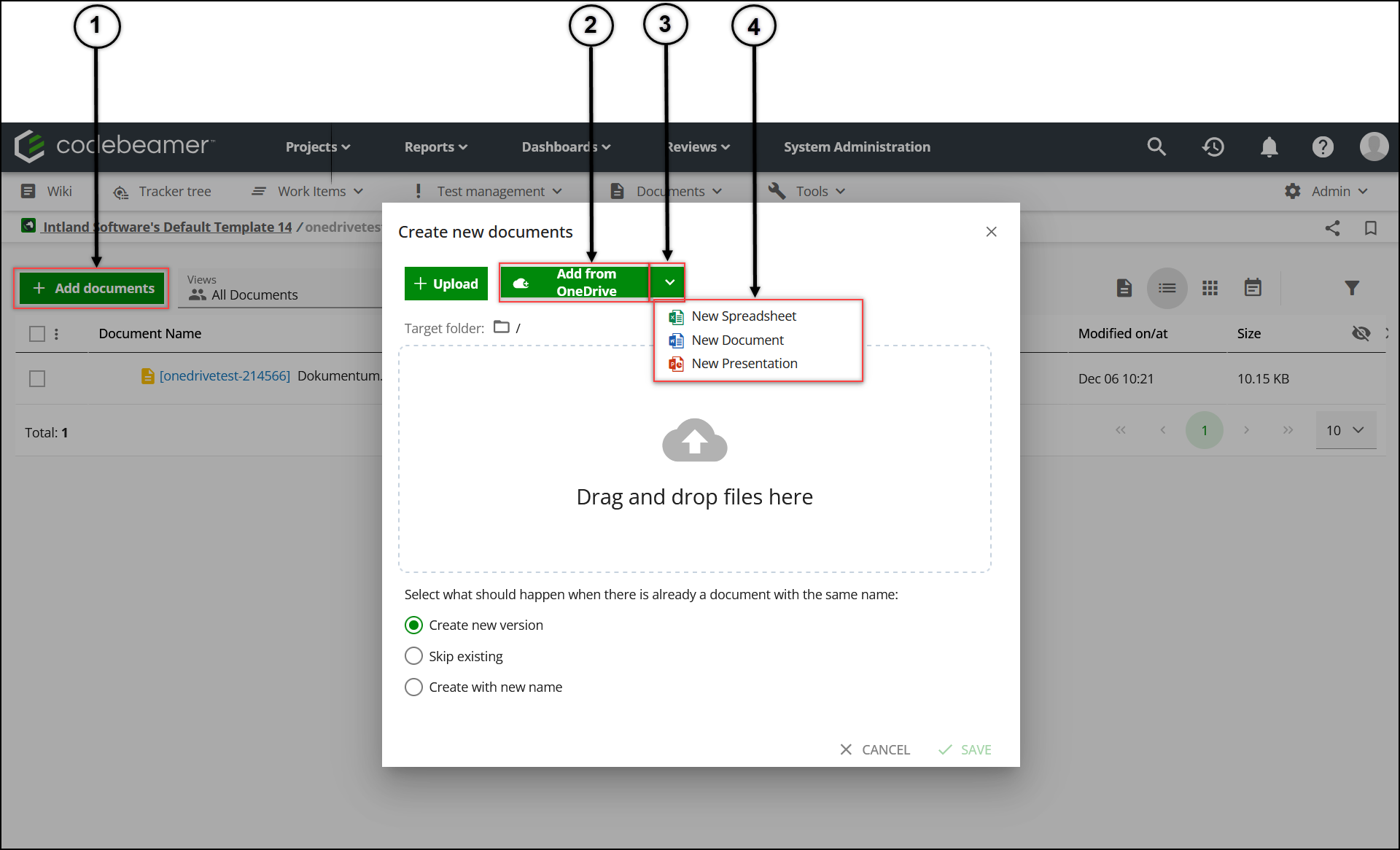
1. Start adding documents
2. Open documents from your Microsoft OneDrive
3. View available office document types
4. Select a document type
Adding Files from Microsoft OneDrive
To add files from your Microsoft OneDrive into Codebeamer X, follow these steps:
1. Go to a document tracker.
2. In the upper-left corner of the window, click  .
.
.3. In the window:
◦ Select the target folder.
◦ Under Select what should happen when there is already a document with the same name:, select an action in case of a name collision.
4. Click  .
.
.1. If you are authenticating for the first time or your Microsoft authentication token has expired, a Microsoft authentication window appears. Sign in using your Microsoft credentials and grant the required permissions to the Microsoft OneDrive app.
2. After the successful authentication, close the window and click again .
.5. The window shows a list of your Microsoft OneDrive files. Click a file, and then click Select to select it. You can select multiple files by using CTRL.
Limitations When Adding Files from Microsoft OneDrive
Adding files from Microsoft OneDrive does not support the following operations:
• The selection of one or multiple folders
• The extraction of archive file formats such as ZIP or TAR
• The upload of all the content of a folder in one action
• An upload operation that can be paused and resumed
Editing Files in the Microsoft Cloud Editor
With the Microsoft OneDrive integration, you can edit Codebeamer X document files directly in the Microsoft cloud editor by following these steps:
1. Upload an office type document into the document tracker.
2. Hover the pointer over the document name and click  > > .
> > .
> > .3. Click > > .
> > .4. The document opens in the default Microsoft cloud editor.
5. At this point, if the user who started the edit in Microsoft cloud action hovers the pointer over the document name in Codebeamer X and clicks > , three actions appear:
> , three actions appear:
◦ Open document in OneDrive—Continue editing the document in the Microsoft cloud editor.
◦ Finish OneDrive editing—Save the changes on the document in the Microsoft cloud editor. This action saves a new document version.
◦ Cancel OneDrive editing—Discard any changes done on the document after opening it on the Microsoft cloud editor. This action does not create a new document version.
 |
Clicking Open document in OneDrive, Finish OneDrive editing, or Cancel OneDrive editing may reopen the Microsoft authentication window if the Microsoft access has expired.
|
When a user edits a document on the Microsoft cloud, other project members without Item - Edit Any permission in that document tracker cannot edit the document but can perform operations not related to the binary file, such as changes to the document metadata and fields.
Project administrators can open the document in Microsoft cloud or force-cancel the editing. These options are available in the > menu. The force-cancel action removes the link between Codebeamer X and the cloud, but it does not delete the document in the cloud.
> menu. The force-cancel action removes the link between Codebeamer X and the cloud, but it does not delete the document in the cloud.Collaborating on Files in the Microsoft Cloud
When you start editing a document on the Microsoft cloud editor, you can reopen the cloud editing page by clicking > > . This action is visible also to other project members who have permission to edit tracker items granted in the Permissions tab in tracker configuration.
> > . This action is visible also to other project members who have permission to edit tracker items granted in the Permissions tab in tracker configuration.When a project member clicks Open document in OneDrive, the permission to edit the file in the cloud is verified according to the Microsoft credentials provided in the Microsoft authentication window. If the Microsoft credentials are not sufficient to edit the file in the cloud, a Microsoft window with the option to request the edit permission from the document owner opens. After receiving the edit permission, two or more project members can edit a cloud document simultaneously.
Note that even when the permission to edit a document in the cloud is granted to a project member, the Finish OneDrive editing and Cancel OneDrive editing actions are only available to the document owner in the Codebeamer X project.
Updating an Existing Document by Selecting a File from Microsoft OneDrive
You can use your Microsoft OneDrive file to replace an existing document. To do so:
1. In a document tracker, hover the pointer over the document link under the Document Name column.
2. In the Document field, click Upload Document.
3. Click .
.4. In the window, select the document to upload and click Select. When replacing a document, you can select only one document in Microsoft OneDrive.
Creating New Microsoft Office Documents
Using Microsoft OneDrive, you can create new documents in Codebeamer X. The supported document types are:
• Word documents
• Excel documents
• PowerPoint documents
To create a new empty Microsoft document, follow these steps:
1. Go to a document tracker.
2. In the upper-left corner of the window, click .
.3. In the window:
◦ Select the target folder.
◦ Under Select what should happen when there is already a document with the same name:, select an action in case of a name collision.
4. Click  inside the Add from OneDrive button.
inside the Add from OneDrive button.5. The New Spreadsheet, New Document and New Presentation options appear. Select your desired document type.
6. Provide a name and click CREATE.
a. If you are authenticating for the first time or your Microsoft authentication token has expired, a Microsoft authentication window appears. Sign in using your Microsoft credentials and grant the required permissions to the Microsoft OneDrive app.
b. After the successful authentication, close the window and click again, select your desired document type, enter the name, and then click CREATE.
again, select your desired document type, enter the name, and then click CREATE.c. You can now use the Microsoft cloud editor. If you want to save or discard your changes, refresh the Codebeamer X document tracker view, hover the pointer over the document created, click > , and then choose Open document in OneDrive, Finish OneDrive editing, or Cancel GDrive editing.
> , and then choose Open document in OneDrive, Finish OneDrive editing, or Cancel GDrive editing.