Export a Tracker Item
This page describes the operation of the Export to Word workflow action.
The tracker items of a tracker can be exported to Microsoft Word documents if a specific item status change defined in the tracker configuration is completed. The set configuration is applied on tracker level.
The generated .docx documents are saved in Document type trackers.
 |
At least one Document type tracker must exist in Codebeamer for the usage of the Export to Word workflow action.
|
Configuration
To set up the Export a tracker item workflow action,
1. Select the relevant tracker and click at the top left > .
at the top left > .2. Find and click the relevant state transition.
3. On the State Transition overlay, click the Actions drop-down list and select Export to Word.
4. The Export a tracker item overlay is displayed where the relevant details need be provided.
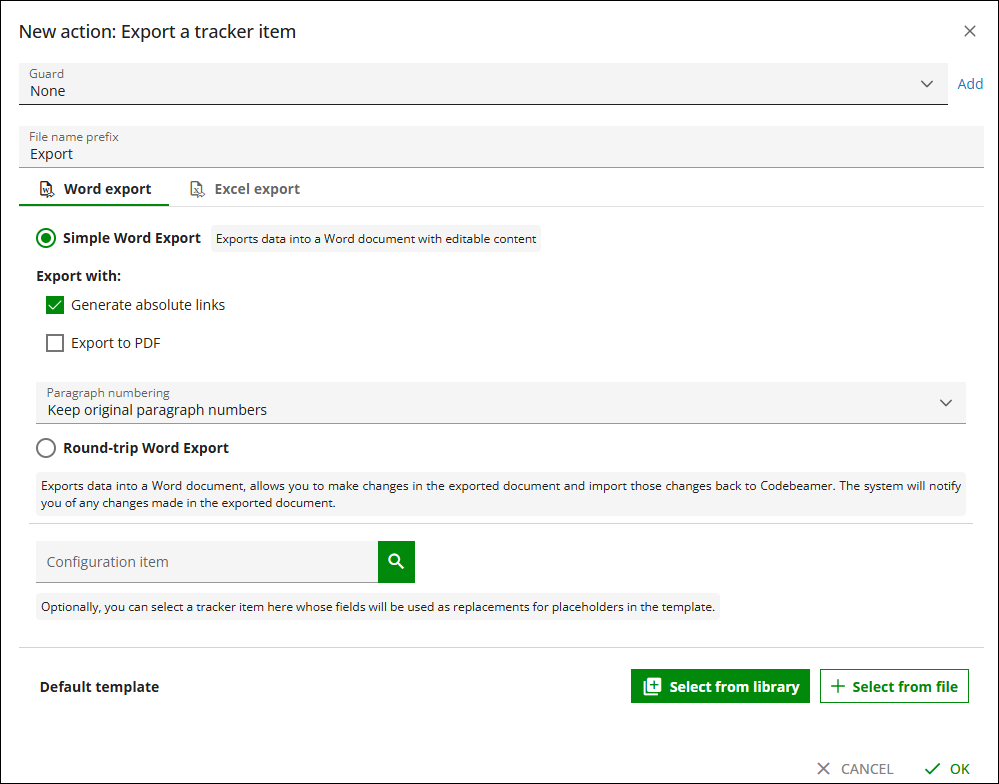
5. Once all the details are provided, click OK, and click Save on the State Transitions tab.
Perform the similar action for Excel export.
Operation
Performing the status change configured for the Export a tracker item workflow action triggers the file export by starting a background job.
Once the background job is finished, clicking the name of the exported .docx file on the notification displayed on the bottom right of the screen, opens the Choose download method overlay.
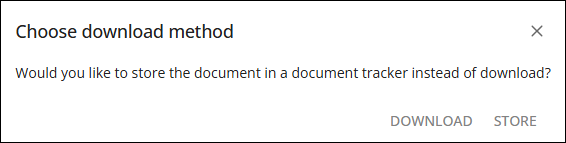
Selecting DOWNLOAD, downloads the file to your system.
On selecting STORE, a Select project and Document type tracker configuration overlay opens. Chose the project, tracker, and action for the name of the document.
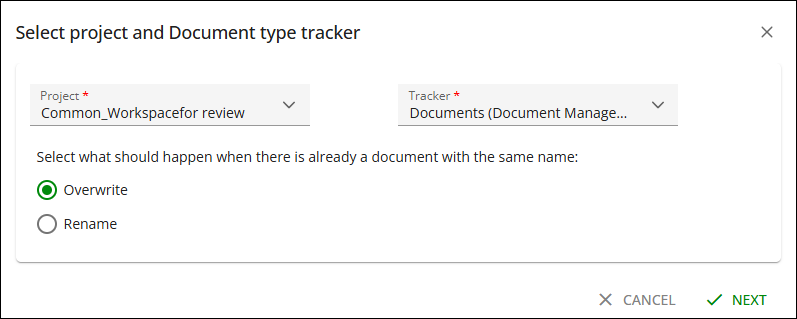
Perform the similar action for Excel export.
Edit the Configuration
Previously configured Export a tracker item workflow actions can be edited. To make any changes,
1. Find the relevant state transition and click the value in the Name column to open the State Transitions tab.
2. In the Actions field, edit the required options.
3. Click OK on both overlays, and save the configuration changes.
Perform the similar action for Excel export.
Parent topic