Fixing a Failed Word Import
The Word document import may fail if the file contains structural issues or uses an outdated format that is not supported by Codebeamer X. If this operation fails, an error message is displayed.
Follow the steps given below to use the Word Document Inspector to fix the broken Word document:
1. Open a Word document and click the File menu.
2. Select > > , to open the Document Inspector.
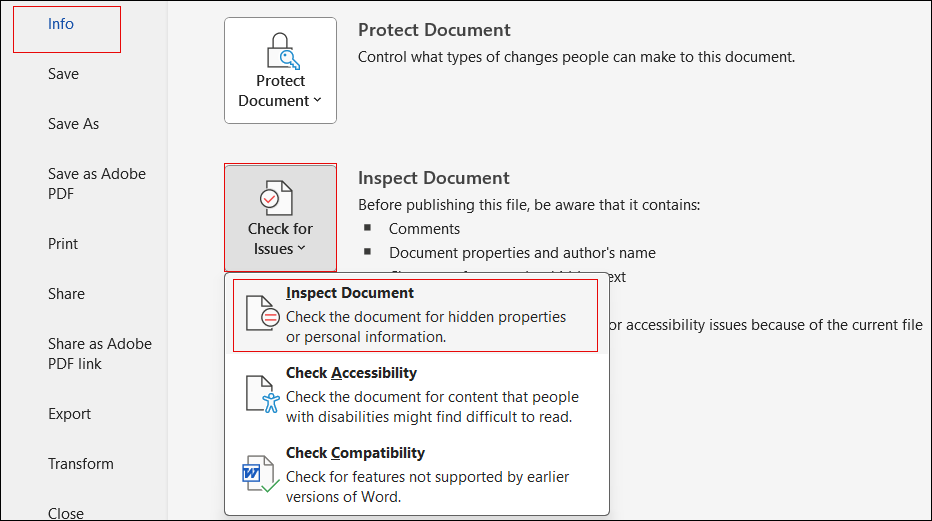
3. On the Document Inspector window, keep all the default selections and click Inspect.

4. In the result window, remove all detected issues, especially any custom XML data. After completing the cleanup, save the document as a new file using the Save a Copy option. Once saved, you can import the corrected Word document into Codebeamer X.

For more details, see Using Document Inspector.
Parent topic