History
In Codebeamer X items are versioned. Every change such as editing, commenting, or workflow transition results in a new issue version identified by a unique version number.

The history tab displays all the modifications done to the tracker item. Enter a string in the Search history search box to search for a specific version of the tracker item To view all the changes made in the available versions click the toggle provided on the left. The toggle changes from  to
to  ensuring that all the changes are now displayed.
to ensuring that all the changes are now displayed.Select any of the two versions of the tracker item to enable the Compare tracker item versions option.
After you click Compare tracker item versions option, a new window displaying all the changes made to the selected tracker item versions are displayed in a tabular format. You can change the display mode by selecting Wiki or Html in the Change display mode list. Select the Show different fields only option to view all the fields modified in the selected version.
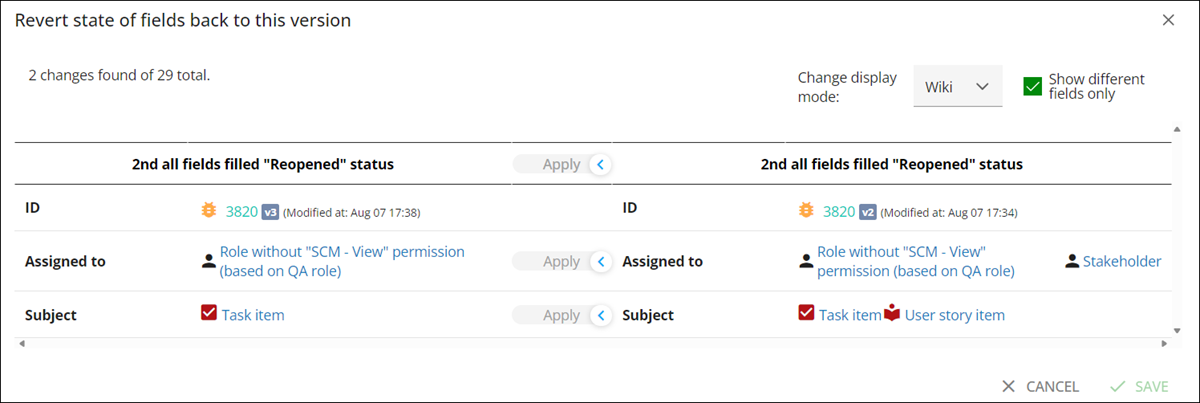
To restore field values from a previous version to the current one, click  next to the older version whose field values you want to reuse. Once you click icon, the Revert state of fields back to this version window opens. This window displays a table that contains the current version and the selected older version of the fields that were modified. To replace the field values of the current version with the older version, click
  . The option is available on the column header to replace all the current field values with the older field values at the same time. You also have this option inside the table to replace the current field values with the older field values individually.
next to the older version whose field values you want to reuse. Once you click icon, the Revert state of fields back to this version window opens. This window displays a table that contains the current version and the selected older version of the fields that were modified. To replace the field values of the current version with the older version, click . The option is available on the column header to replace all the current field values with the older field values at the same time. You also have this option inside the table to replace the current field values with the older field values individually. | The option is available only for the fields that are modified in the older versions. |
| | The History tab no longer shows the change history. This tab displays the version history of the issue. Click a version number to view the historical version. |
Only the current version (head revision) of an item is editable depending on issue status and user permissions. Concurrent editing operations are now detected. Only the first user committing the changes succeeds. The commits of other users editing the same revision are rejected with the Attempt to update non-head revision message.
Parent topic