Hide If and Mandatory If Formulas
You can hide fields or make the fields mandatory for a tracker item by using a computed formula. You can use the same expression language used for computed field formulas.
Hide if formula
Navigateto the Fields tab on the Tracker Configuration page and select a field. Below the Mandatory in status row you can see a Hide if row where you can type your own formula. The Hide if section is not available for the Summary and Description fields.
In this example, the Requirement tracker of the Agile-Scrum Smart Template is used. We set the following Hide if formula for the Resolution field:
categories[0].name == 'Information'
This formula means that if the value of the Type choice field that has the property name categories is set to Information, the Resolution field and its values are immediately hidden.
Using the Same as Checkbox
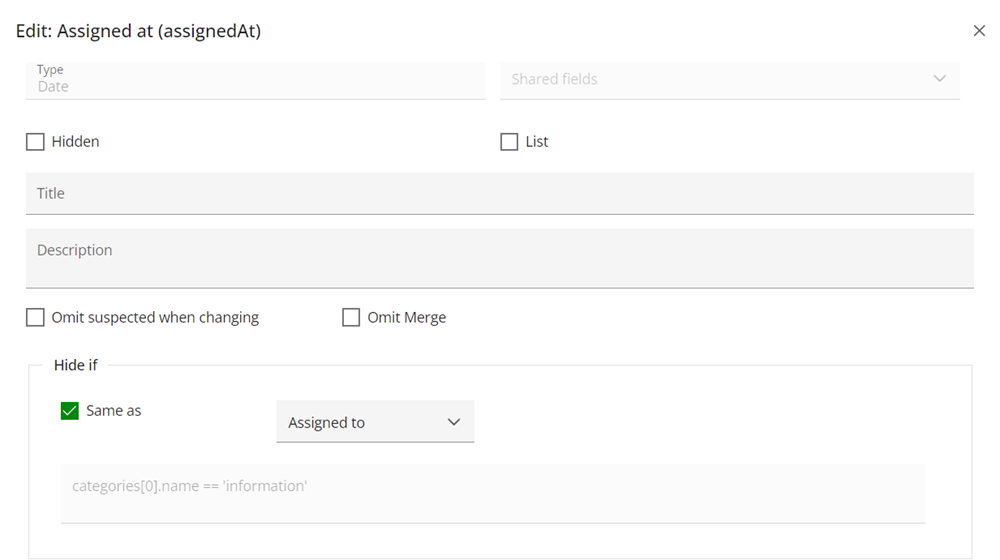
Once you set at least one Hide if formula, you can use the same formula for other fields. Select a field where you want to copy the Hide if formula. Select the Same as check-box, and select the field from which you want to use the same Mandatory if formula in the list.
In this example, the same Hide if formula for the Complexity field as for Resolution field is used. The formula is copied to the text area in read-only mode.
Affected Pages
The following pages are affected by setting a Hide if formula:
• The edit page fort a tracker item. While editing the field values, the Hide if formula is checked immediately. The formula decides whether the fields should be visible or not, and the affected fields are highlighted with a yellow background.
Figure 111. Edit Tracker Item
• The details page for a tracker item. After using inline edit, the affected fields are hidden or shown according to the Hide if formulas.
• A field retains its value even when it becomes hidden because of the Hide if formula.
• Document View / Planner right Issue properties section: After using inline edit, the affected fields are hidden or shown according to the Hide if formulas.
 | Hide if formulas are not used on Table View or Report pages. You will see all the fields and their values on these pages, regardless of the Hide if formulas that are set. This formula is currently supported only for HEAD version of items. |
Handling mandatory fields
You can use Hide if formulas and mandatory fields at the same time, but the behavior can vary if a field is hidden or shown because of the Hide if formulas that are set.
If a field is mandatory, but it is hidden because of a Hide if formula, the mandatory check is skipped. The mandatory field value can not be empty. Once the field is visible, the mandatory check applies.
Parent topic