Creating Working-Sets
How to Create Working-Sets
 |
Working-Set creation runs as a background job. The created Working-Set is not available immediately, but you receive a notification email and a message in the browser when the job is complete.
|
With the Working- Set - Administrate project permission, you can create a Working-Set from two places:
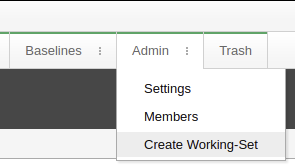
1. Click the three dots of the Admin tab and select Create Working-Set:
2. On the Trackers page and click  Working-Set icon.
Working-Set icon.This opens an editor dialog box as follows:
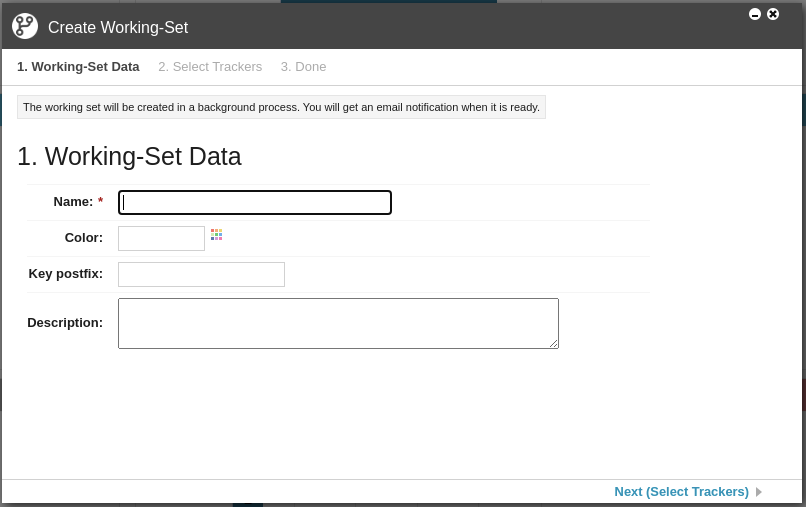
The fields include:
• Name: Specify the name of the Working-Set. This field is mandatory.
• Color: Specify a color to be used as the header color of the Working-Set for easier identification. This field is optional.
• Key postfix: By default, the key of an item in a Working-Set is the same as the tracker key. If a key postfix is specified then it is appended to the tracker key. This field is optional.
• Description: Enter a description for the Working-Set. This field is optional.
After you enter the information, click Next (Select Trackers) to navigate to the trackers selections page:

Selecting trackers:
• Trackers are grouped into Work Items and Configuration Items.
• By default, all available trackers are selected.
• If the tracker is a Shared tracker, selecting the tracker indicates that the tracker will be visible in the Working-Set. Otherwise, the tracker is a Branched tracker, and a new branch of the tracker will be added to the Working-Set.
• If the project has at least one baseline, then the baseline selection combo-boxes are available:
◦ The check box at the top sets the common baseline for the entire Working-Set.
◦ Each included tracker has a check box to set a tracker-specific baseline.
◦ By default “HEAD” is selected for all.
Click Next (Done) to navigate to the summary page:
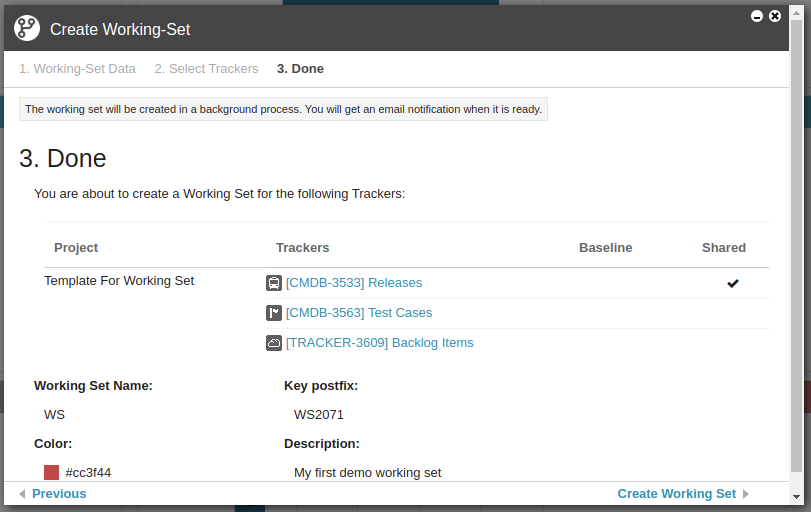
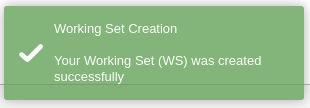
The Working-Set creation runs as a background job. You will receive a notification email and the following message will appear in the browser:
 |
If an error is encountered during Working-Set creation, you are notified by email and a message in the browser.
|
Some changes have been introduced in tracker operations when used with Working-Sets. For more information, see Important Modifications Introduced When Creating Working-Sets.
Validation
Before creating or extending a Working-Set, Codebeamer validations ensure the following:
• The name of the Working-Set is unique.
• The combined total of items across all included trackers is below the specified limit. The default is 500,000. For more information, see "workingset" section.
Background Job
Working-Set creation and extension run as background jobs. The Working-Set is unavailable until the job is complete. You are notified when the job is complete.
By default, the Working-Set jobs run sequentially, one after another.
In the event of a server restart, a background job can recover from an inconsistent state. Before running the job, Codebeamer validations check if the job had been running before restart, to clean up the inconsistent state. The job is then restarted from the beginning.
Baseline Creation
During Working-Set creation, an entry for the Working-Set is added to the baselines list, so that a Working-Set can be compared with Baselines and other Working-Sets.
When you rename a Working-Set, the entry for that Working-Set in the baselines list is renamed.
Migrating Legacy Branches
To continue working with legacy branches, assign them to a Working-Set while selecting trackers for that Working-Set.
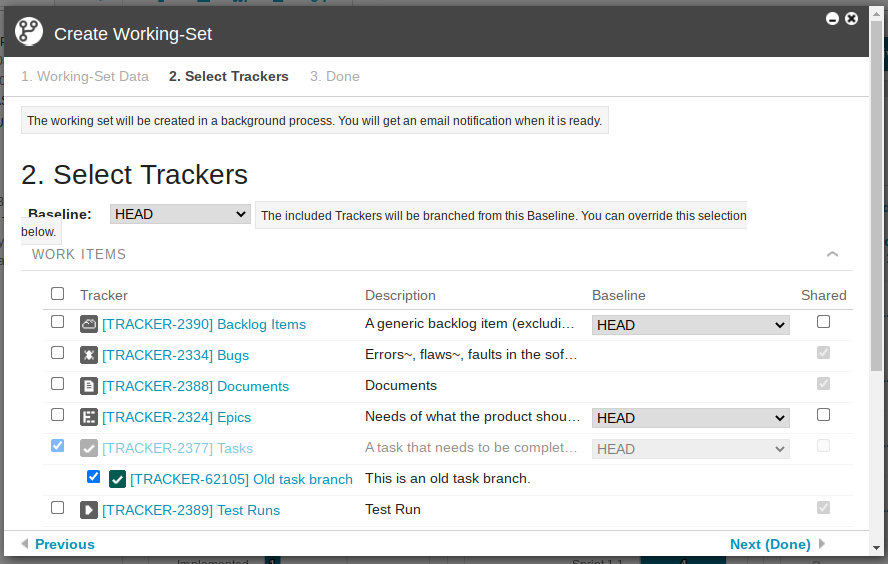
Only one branch of a given tracker can be selected to be included in a Working-Set.
|
|
To use legacy baselines created for a branch, run one of the following scripts as necessary:
If you need help to execute the scripts, contact PTC Technical Support.
|
Creating References
This section describes how references to items and the corresponding configurations are rewritten during the creation of Working-Sets.
You can create a reference to an item only if that item is included in the current Working-Set
Excluded Trackers
1. The excluded tracker (Task) references an included tracker (User Story).
◦ The included tracker is branched, but the reference is not added.
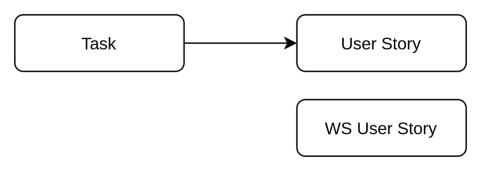
2. The excluded tracker (Task) references a shared tracker (User Story).
◦ Nothing changes.
3. The excluded tracker (Task) references an excluded tracker (User Story).
◦ Nothing changes.