Writing Excel Templates
This section briefs about writing excel templates
What are the Excel templates?
Excel templates are just ordinary and simple .xls or .xlsx files which contain certain scripts and special tags written into the cells of the template file. These scripts can control what content is exported and how it will look like.
During exporting of a template the scripts are evaluated for the input Codebeamer entities (the bugs/issues/tasks/requirements from the tracker) and the result is put into the result Excel document. Those parts of the original template are preserved - like charts a kept- as is which does not contain these special scripts.
The Excel export is using a simple yet powerful open-source templating engine JETT. Many of more complex details are documented on JETT's pages, so it is advised to get familiar with those pages too.
Simple properties export
To create a simple export template you can start with a new clean Excel sheet, and put scripts into cells of the template. For example, the following Excel sheet will export the items (bugs, requirements etc)'s status and description to Excel:
|
Status
|
Description
|
|---|---|
|
${items.status.name}
|
${items.description}
|
What is happening here is that during the export the Codebeamer will search the template Excel document and finds the the scripts by looking at the cell's content. If a script like ${items.description} is found then this script is evaluated for each exported items (TrackerItemDtos) and the result of this evaluation is put into the export document.
If the script is using the items variable the script that means that the script is executed once for every exported item, and there is automatically a new row created in the result document.
Special items variable: Implicit collection processing
When using the items variable in a script that gets automatically recognized, and that single row which contains the ${items.description} is evaluated for every issues. The result then will be added as one new row below each other.
This two screenshots shows the template and the result:
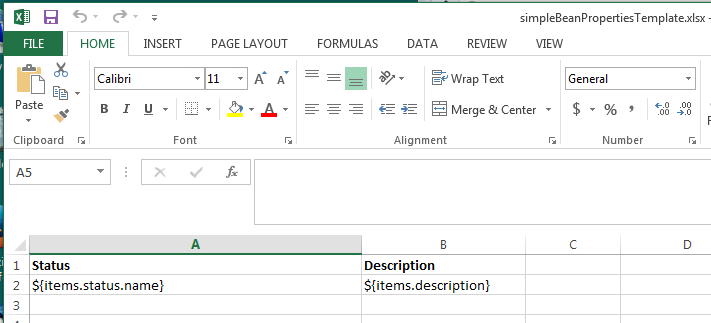

Exporting issue properties
You can access the issue's properties using a simple expression language which uses the common $ and dot notation which is used in many scripting languages. For example, the ${items.description} is used to access the item.getDescription() java getter.
The export engine uses the JEXL expressions for scripts.
There are more information available here about these scripts: JEXL syntax and some JEXL examples are available too.