Importing and Round-Trip Editing of Test Cases with Test Steps in Excel
 |
Starting with Codebeamer 8.0.0 the Test Step import process is updated, however you can still use How to import Test Cases with Test Steps from Excel in the older version of Codebeamer.
|
Round-trip editing of Test Cases with Test Steps
During the Roundtrip Excel export, the Test Cases generate an Excel file containing all important fields of the Test Cases automatically. These include:
• Test Case Name.
• Test Case Description.
• Pre-Action.
• Post-Action
• Test Steps Action/Expected result/Critical/ID fields.
• Test Parameters.
The export generates a basic format in which each step appears in a new row for each Test Case. Since each step property is in its own cell, these Steps are simple to update in Excel.
Here is an example showing the Excel export of the Test Case's Steps:

Importing back Test Cases export
When importing back the round-trip Excel export, submit the Excel export file containing your changes and follow the import wizard. Your changes are automatically written back to the original Test Case and its steps. If you change the name/description/Pre- Post- action and other fields of the Test Cased . In the case of changes in a step field, (Action or Expected result or Critical), all such changes will be written back the corresponding Test Case and Step during import automatically.
How to update a Test Step
If you want to change the Action or Expected result field of a Test Step, this can be done by modifying that cell in the Excel export file and import back. The Step will be updated correctly.
How to add a new Test Step to a Test Case
To add a new Test Step to a Test Case, create a new row in Excel where you want the new Test Step, and enter its properties. That Step will be automatically inserted during import. You can add the step anywhere to the middle of Steps table or to the end.
How to delete a Test Step
You can also delete a Test Step by deleting its row in Excel, the step will disappear after import.
Adding new Test Case with Steps
You can add a new Test Case with Steps too. Add new rows to the Excel sheet, and fill in the Name/Description and add as many Steps as you want in separate rows. Make sure that the ID column of the new Test Case is empty so that it is recognized as new Test Case during import.
Adding images to Test Cases and Test Steps in Excel
Images can be added to Excel cells, which images will be added to the created Work items as attachments plus they will appear in the generated wiki markup as images too.
You can also add images to Test Steps: these images will appear in this Step in Codebeamer too.
For more information about importing images from Excel see: Importing Data from Excel to Codebeamer
Special handling of Reference/Reused Test Steps
A feature of Test Steps is that they can reuse Steps on other Test Cases. A detailed description of this is here
When exporting and import Test Cases which contain Steps with reuse (either reusing other Step or reused by other Step), those steps will look and behave slightly differently in roundtrip-exports.
These special Steps will look similar in Excel to how they look inside Codebeamer - using the same background colors-:
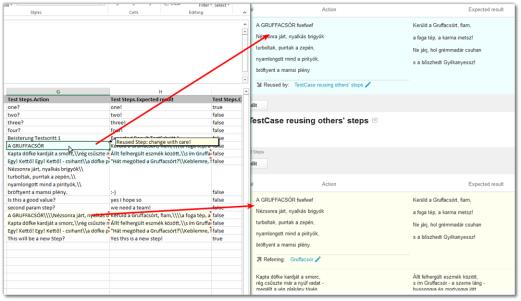
Importing new Test Cases or importing existing Test Cases as new
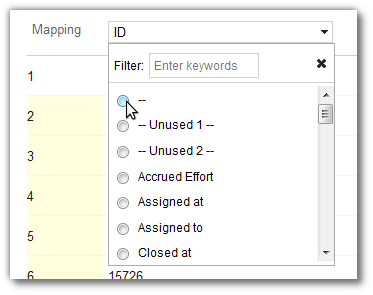
When you want to import and create new Test Cases from and export created using the Roundtrip, export all you have to do is to remove the mapping of the ID field during import. This is how:
 | When multiple test steps are present and the ID column is not mapped, Codebeamer merges multiple Excel rows and imports them into a single tracker item if they have the same summary or the same summary and description. For more details, refer to Handling Multiple-Choice Fields During Excel Import When ID Is Not
Mapped. |
You can import Test Case from Word too
As you can import tables from Word too: When a similarly structured Test Case table with Steps appear in Word that can be imported from there, and will be added as Test Cases and Steps.
| | Since 7.8 version of Codebeamer the Word export has built in support for exporting Test Cases and Test Runs using specialized templates. So the Word templates on the wiki pages below are obsolete, just use the default templates as base of your customizations. These templates are in the $CB_HOME/tomcat/webapps/cb/docxtemplates/ directory: Test-cases-template.docx: used for Test Case's export: which includes Test Steps and Pre- and Post- actions Test-runs-template.docx: used for Test Run's export: which includes Test Runs' results and steps' results and also reported bugs. For more information, see Word and Excel Templates. |