How to Export Excel with Headers-Footers using Excel Templates
It is possible to generate Excel exports with some static images or text in the Excel's headers.
The steps are:
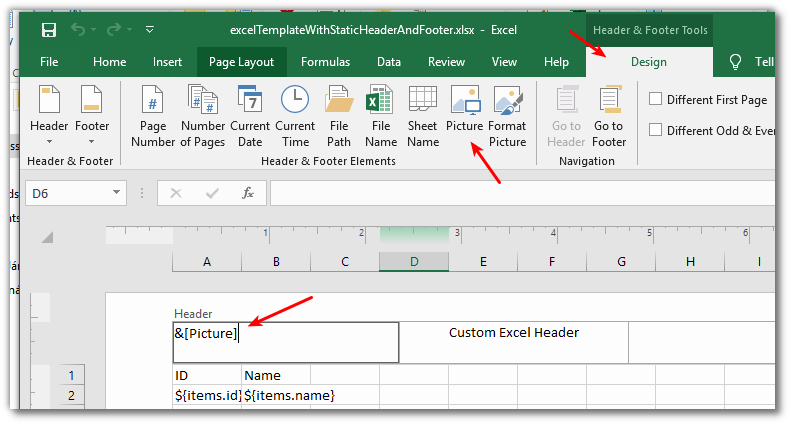
• Start with a new or existing Excel template and click on Insert menu and there click on Header & Footer submenu. This adds Header & Footer to your Excel document

• Double click on the Header to start editing it, add any text you may need here.
• To add an image in the Header & Footer Tools menu on Design tab to find the Picture button. Click on that to insert an image. After adding the image an image placeholder will appear here which is replaced with the real image if you leave the header by clicking on the Excel Sheets' body
• Similar to the header you can add text/images to the Excel sheet.
After this you can save this Excel template and if you added your Export fields to the Excel body that will be nicely generate the desired export with your custom images & text in the Excel header and footer.

Example templates: