Migrating Stylesheets from a Previous Release
It is good practice to check whether your existing 樣式表 .style files need updating when you install a new release of Arbortext Styler. Stylesheets from previous releases might not be compatible with the current release of the product. When you open a 樣式表 from a previous release in the current release of the product, Arbortext Styler might prompt you to update the 樣式表. In this case, follow the prompts and your 樣式表 will be updated automatically. Note that you must save the 樣式表 for the updates to be permanent.
Following are two ways to update existing 樣式表s:
• To update a 樣式表 in Arbortext Styler:
a. In Arbortext Styler, select > .
The Open Stylesheet dialog box opens.
b. Select a 樣式表 developed in a previous release in the Available Stylesheets list.
c. Select OK to close the dialog box and open the 樣式表 in Arbortext Styler.
If the 樣式表 needs updating, Arbortext Styler prompts you to perform the update. If you do not perform the update, the 樣式表 will not be usable in the current product release.
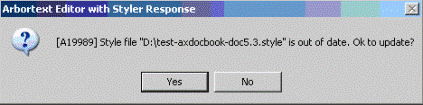
d. Follow the prompts to update the 樣式表.
Make sure you save the 樣式表 to make the updates permanent. Note that after you save the updated .style file, it cannot be used by previous releases of Arbortext software. The automatic updating process does save a backup of the original stylesheet, however, that you can access if necessary.
e. Perform this operation for all 樣式表s you are migrating to the upgraded release. Be sure to check all custom directories your site uses for 樣式表 .style files.
• To update a 樣式表 in Arbortext Editor:
a. In Arbortext Editor, select > .
The Select Stylesheets dialog box opens.
b. Highlight the current Editor/Default stylesheet and select the Modify button.
The Modify Editor/Default Stylesheet Selection dialog box opens.
c. Select a 樣式表 developed in a previous release in the Available Stylesheets for Editor/Default list, or add a new one via the Add button.
d. Select the Select button to close the dialog box and set the 樣式表 as the Editor/Default stylesheet.
If the 樣式表 needs updating, Arbortext Editor prompts you to perform the update. If you do not perform the update, the 樣式表 will not be usable in the current product release.

e. Follow the prompts to update the 樣式表.
f. Select the Close button to close the Select Stylesheets dialog box.
g. Make sure you save the 樣式表 to make the updates permanent. After you save the updated .style file, it cannot be used by previous releases of Arbortext software. The automatic updating process saves a backup of the original stylesheet, that you can access if necessary.
h. Perform this operation for all 樣式表s you are migrating to the upgraded release. Be sure to check all custom directories your site uses for 樣式表 .style files.
If your stylesheet contains edited source for elements that was created in an earlier release of Arbortext Styler, or you suspect that it may, it is useful to review the stylesheet with this in mind when you wish to update it. You may need to recreate existing source code edits to take into account any new features introduced in the release.
Refer to Editing Stylesheet Source Overview for details about editing the source of an element context.
Parent topic