添加新主题
在本练习中,将使用您在上次练习中修改的 businessMeetings.ditamap 文档。
创作 DITA 映射时,可使用资源管理器的新建主题选项卡来同时创建新的 DITA 主题并将对该主题的引用添加到映射中。也可以直接从映射打开引用的主题。
按照以下步骤将新主题添加到 businessMeetings.ditamap 文档:
1. 将光标置于大纲中映射的标题之后。
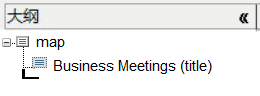
大纲列显示特殊光标  ,可帮助您确定主题引用在映射中的插入位置。
,可帮助您确定主题引用在映射中的插入位置。2. 在资源管理器的新建主题选项卡中选择 DITA Concept。
3. 在标题字段中键入 Introduction。
请注意,资源管理器会基于该标题自动将名称添加到文件名字段。如果需要,可在创建新主题前更改文件名。
4. 在文件夹字段中,使用浏览文件夹按钮  打开浏览文件夹对话框。在该对话框中,浏览到 DITA 主题的存储位置。选择确定关闭对话框并将该位置添加到文件夹字段。
打开浏览文件夹对话框。在该对话框中,浏览到 DITA 主题的存储位置。选择确定关闭对话框并将该位置添加到文件夹字段。5. 单击插入按钮。
创建新主题并将对该主题的引用添加到映射中:
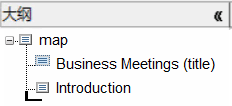
6. 双击大纲中的 Introduction。
在 Arbortext Editor 窗口中打开新的 Introduction.dita 主题。
7. 在简短说明 (shortdesc) 标记中输入以下文本:
This document provides information on making business meetings more productive.
8. 在概念正文 (conbody) 标记中的段落 (p) 标记中输入以下文本:
Meetings can often cause more harm than good to a business by wasting the time and hurting the productivity of meeting participants.It is important to only hold meetings when truly necessary and to make those meetings as efficient as possible.It is also important to make sure that meeting participants have an accurate record of what took place at a meeting.This document will help you make your business meetings more productive.
9. 保存并关闭 Introduction.dita。
10. 保存 businessMeetings.ditamap。
有关详细信息,请参阅 Arbortext Editor 帮助中的新主题选项卡主题。