插入標籤與內容
請使用在上一個練習中建立的 Arbortext XML DocBook 文件來進行此練習。
Arbortext Editor 有數個方法可讓您將標籤插入文件中,包括
插入標示對話方塊與工具列按鈕

。在本練習中,您將使用「快速標籤」功能將標籤插入文件中。
依照下列步驟將標籤與內容插入新的文件中:
1. 在「文件地圖」中,將您的游標置於現有段落的開頭。
2. 按壓 ENTER 以顯示「快速標籤」選單。
只提供該文件類型在該位置允許的標籤。
3. 使用滑鼠,按一下 para 以插入新 para 標籤。
游標會自動放置以供插入文字。
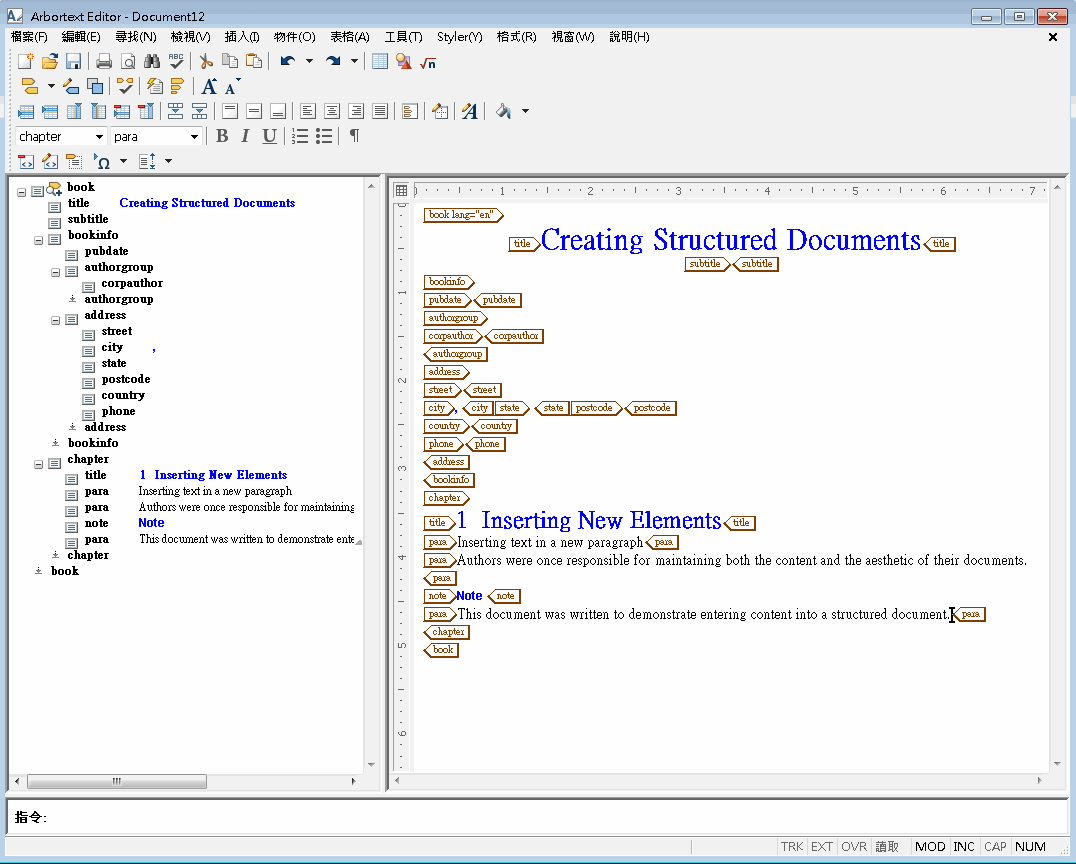
4. 鍵入 Inserting text in a new paragraph.
5. 將游標放在「編輯」檢視中,並選擇 > 。
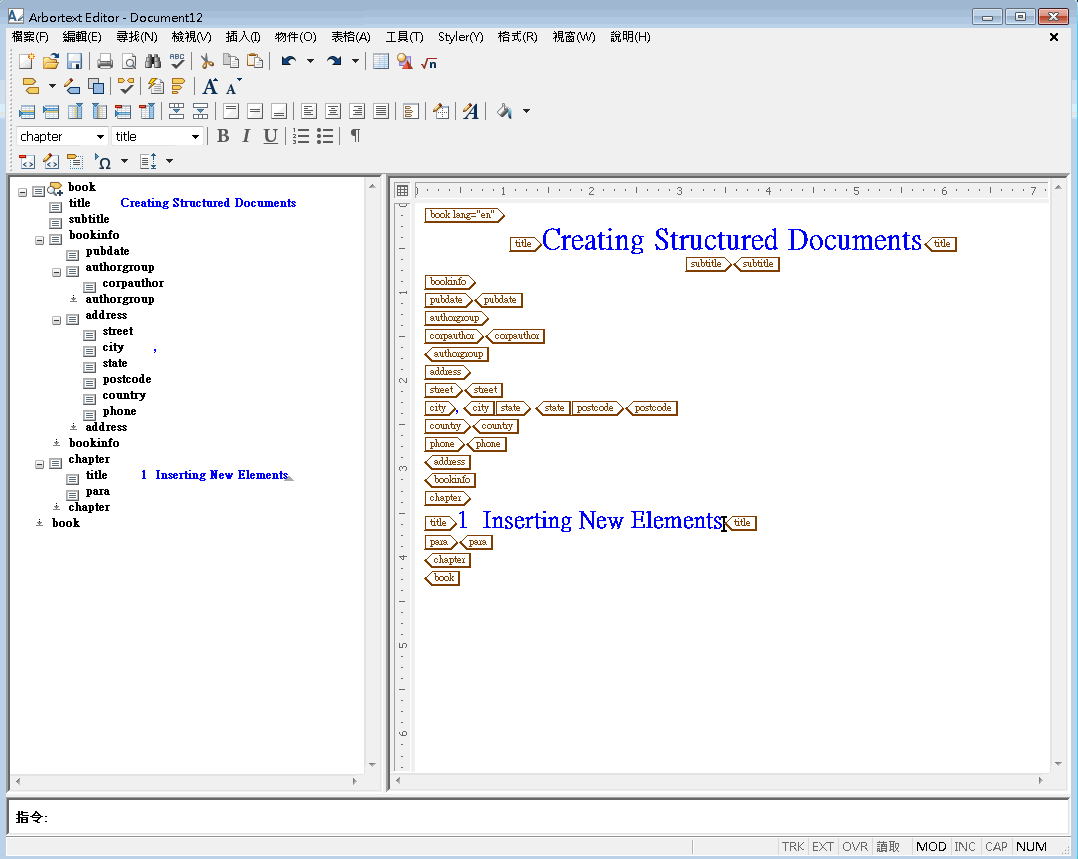
6. 在「編輯」檢視中,將游標放置在文件頂端的 title 標籤之間,並鍵入 Creating Structured Documents
7. 將游標放在下一組 title 標籤之間 (在 chapter 標籤之下),並鍵入 Inserting New Elements。
8. 在第二組 para 標籤之間,鍵入 Authors were once responsible for maintaining both the content and the format of their documents. Structured documents allow authors to focus entirely on content.
9. 按壓 ENTER 來從「快速標籤」清單中選取標籤。
10. 按一下 note 以插入 note 元素
11. 鍵入 This document was written to demonstrate entering content into a structured document.
12. 選擇 > 來儲存您的變更。
如需更多資訊,請參照
Arbortext Editor 說明中的
插入標示 與
使用快速標籤插入標籤 主題。