Validate Data
You use this task to validate the SIM or CSV bundles, before loading it into Arbortext Content Delivery. For example:
1. Login to the Task Manager.
2. In the Tasks tab, click the Validate data task.
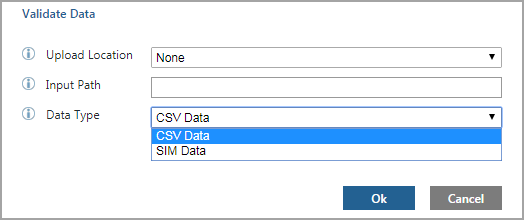
The task has the following input parameters:
◦ Upload Location—Specifies where the bundle is located.
None means the bundle is on the local machine. In this case, enter the path to the folder containing the SIM or CSV data in the Input Path parameter.
Local means there is no local upload location, so the bundle is in a remote location. In this case, a Browse button is displayed next to the Input Path parameter enabling you to open a window where you can browse to the remote bundle location. Note that when you specify Local, the input path can only point to a file (.csv or .zip), not a folder.
◦ Input Path—Specifies the path to the bundle.
To browse bundles that are present at current location,
a. In Upload Location, select None.
b. In Input Path, enter the path of the bundle that is present on local machine.
c. In Data Type, select SIM Data for SIM bundles or CSV Data for CSV bundles..
d. Click OK.

To browse bundles that are present at remote location,
a. In Upload Location, select Local. The bundle should be in zip format.
b. Click Browse to navigate to the remote location path and select the bundle that is in zip format.
c. In Data Type, select SIM Data for SIM bundles or CSV Data for CSV bundles.
d. Click OK.
3. View task status on Task Monitor
◦ If SIM or CSV bundle validation is successful, then Task Status column shows Completed and no file is created after validation is complete.

◦ If SIM or CSV bundle contains any error then Task Status column shows Aborted and Comment column a shows link to View Validation Report. You can User open the validation report from task manager using the validation link.
