Preferences
The Preferences utility allows Arbortext Content Delivery administrators to view and set preferences for the system, such as search results limits, date format, and other system behaviors. Launch the Preferences utility by clicking Preferences on the administration home page.
Preferences are grouped by categories, according to the type of functionality that they affect. Use the expand icon  and collapse icon
  next to the category names to display and hide the preferences in each category. From the table toolbar, use the expand-all icon
  to show all preferences in every category, and the collapse-all icon
  to hide all preferences in the table, leaving only the categories visible.
and collapse icon next to the category names to display and hide the preferences in each category. From the table toolbar, use the expand-all icon to show all preferences in every category, and the collapse-all icon to hide all preferences in the table, leaving only the categories visible.Within a category, each preference is named and described, and the current value of the preference is displayed. To change the preference value, click the edit icon  next to the preference. From the edit view, you can:
next to the preference. From the edit view, you can:• Set the preference value, and click the checkmark icon  to save the change.
to save the change.• Click Revert to default to set the preference back to the system default value.
• Click the close icon  to close the edit view without saving any changes.
to close the edit view without saving any changes.Preferences can be locked to prevent the preference setting from being overridden elsewhere within the application, including for service groups. The locked icon  indicates locked preferences. By default, all preferences are unlocked, indicated by an unlocked icon
  . Clicking the icon changes the lock status for the preference.
indicates locked preferences. By default, all preferences are unlocked, indicated by an unlocked icon . Clicking the icon changes the lock status for the preference.• Under General Settings, you can find the Global Languages preference, specifies the global languages to use in the client.

• Under System Settings, you can find the Maintenance mode preference, using which you can enable Maintenance mode for non-OEM-administrator users.
• All the email related configurations are now controlled from a single configuration point in the Configurator, replacing the former email configurations in the administration preferences.
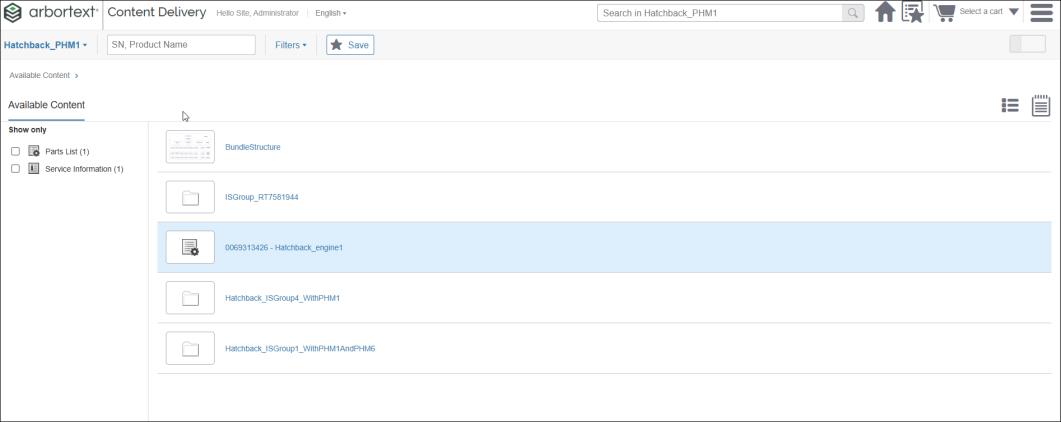
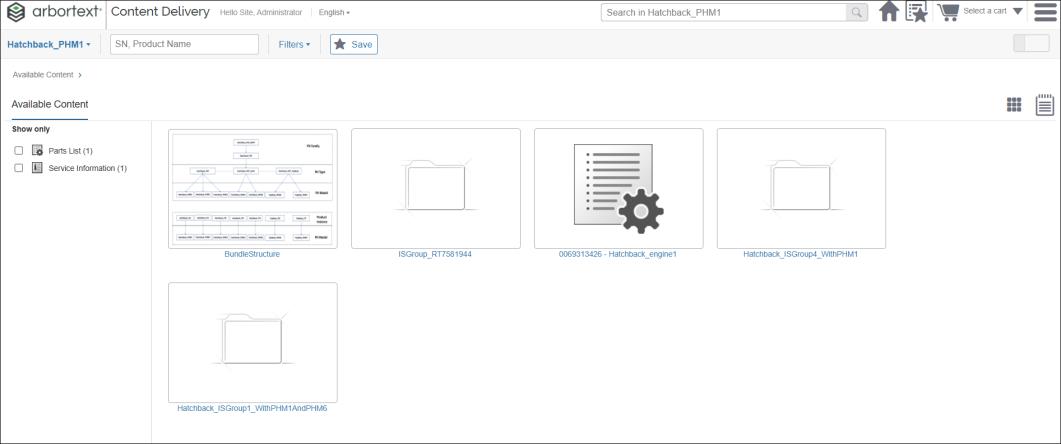
• Under Navigation, you can find the Grid Layout For Information Element Browser preference. The default is List Layout.

The following image shows the example of the List Layout:
The following image shows the example of Thumbnail layout:
• Under Information Filtering, you can find the Options and Choice Auto Set preference using which you can enable the options and choices auto set based on the PH+PI logical expressions. The default value of the Options and Choice Auto Set preference is true and this is applied unless it is set to false by the administrator.

For more information, see the Using a Filter topic in the Arbortext Content Delivery Help Center.
• Under Search, you can find the Enable Global Search preference using which you can enable or disable the Global Search box. The default value for this preference is False. Unless you enable this preference or navigate to a context, the Global Search box is disabled.

After enabling the global search from the administrator UI, tap  to access the global search on your mobile device.
to access the global search on your mobile device.• Under Search, you can find the Non-Searchable Information Types preference. To exclude parts list, media, and service information you need to set preference value as partsList,Media,Information as shown in the image below. The default value is PART. All these values are case-sensitive.

To exclude Part Information Types from search results, see Excluding Standalone Parts
If parts are intended in the search results, the default value of PART should be removed from the Non-Searchable Information. Type preference and the property in the referred section above, should be set to False.
• Under Search, you can find the Default Excluded Information Types preference. To exclude any of the information types from search results, the value for this preference should be the respective key of the information type from facets.xml separated by commas. You will see the excluded information types in the facets, but they will be deselected. By leaving this preference empty, you allow to select all information types by default. For example, to exclude parts lists, media, and service information, set the preference value to partsList,Media,Information as shown in the image below. All these values are case-sensitive

• Under Service Information
, you can find the PDF default browser plugin rendering preference. When preference is set to True, PDF renders in browser plugin (only supported in Google Chrome browser). When the preference is set to False, the PDF renders in PDF JS. The default value is False.

===
• Under Shopping Cart, you can find the Auto-Create New Shopping Cart preference.
Preference is set to False:
◦ If you add a part to the cart and there are no carts in the system, a new cart is automatically created.
◦ A cart is not created automatically, if there are carts in the system and are not active.
◦ The parts are automatically added to the active cart, if there is an active cart in the system.
Preference is set to True:
◦ If you add a part to the cart and there are no carts in the system or all are active, a new cart is automatically created and assigned as your active cart.
◦ If there is an active cart in the system, the part is automatically added to the active cart.
The default value for the Auto-Create New Shopping Cart preference is True

• Under Offline Synchronization, you can find the following preferences:
◦ Automatic Cleanup Loaded Packages
—Automatically cleans up loaded packages that are available on the offline system.
◦ Automatic Updates Downloading
—Automatically downloads updates from download center to the offline system when connection is available.
◦ Automatic Updates Loading
—Automatically loads the downloaded updates to offline system when connection is available.
The default value of all the above preferences is set to False.

• Under Visualization you can find the Enable Content Download preference which allows you to hide or unhide the download link for the end users. By default, the preference does not show any download link. This preference specifies the comma-separated list of file type extensions that allows end users to download. This preference does not control file types such as, XML, PDF, PartsList, .png, .gif, .pdf, .svg (below 18MB), .jpeg, .jpg, .tif, .eps, .pvz, .pvs, .bmp, .mp3, .mp4, .mpeg, and .wav, which remain unavailable for download regardless of their inclusion in the list.

• Under Visualization, you can find the Application Header Logo preference, that allows you to set the color of the application's header section. The value must be in #RRGGBB or #RGB format.

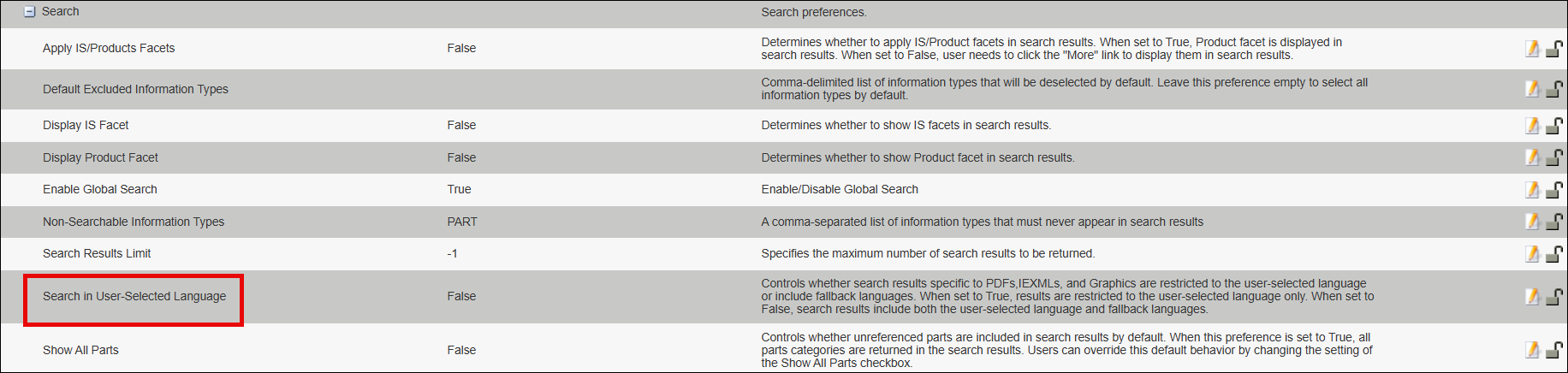
• Under Search, you can find Search in User-selected language preference. This preference determines whether search results—such as PDFs, IEXMLs, and Graphics—are displayed only in the language you have selected, or if they also include content in fallback or authored languages.
When the preference is set to True, Arbortext Content Delivery does the following:
◦ Displays results only in the user-selected language.
◦ Displays a message if the content is not available in the user-selected language.
◦ Displays a one-time notification, Content in the authored language is displayed when content in the user-selected language is unavailable, when you first navigate to IS node either through Search results or PH navigation.
When the preference is set to False, Arbortext Content Delivery does the following:
◦ Displays results in the authored or fallback language if content is not available in the selected application language.
The default value of the preference is set to False.
• Under License Settings, you can find the Prevent Multiple Sessions per User preference. This preference controls whether a user can access more than one active Arbortext Content Delivery sessions at the same time across different browsers or devices. This preference helps administrators manage license usage by limiting users to one license, if the preference is set to True.
 |
Restart the server after you change this preference to either True or False. After the restart, the selected value takes effect and ensures that licenses are consumed accordingly.
|
Session behavior when the preference is set to True:
|
User Action
|
System Behavior
|
|---|---|
|
When you start a new Arbortext Content Delivery session in a browser.
|
The system initiates a new Arbortext Content Delivery session and checks out one license.
|
|
When you start an Arbortext Content Delivery session in another tab of the same browser
|
The system continues using the existing session. No additional license is consumed.
|
|
When you start a new browser session or log on to a device to access Arbortext Content Delivery
|
The system displays a prompt to close the previous session and continue. If you click Continue, the system establishes a new session and, checks out one license. The system also terminates the previous session and checks in its license. If you click Cancel, the system keeps the existing session active with no change in license usage.
|
|
When you refresh a session that has timed out
|
The system initiates a new session and checks out one license.
|
Session behavior when the preference is set to False:
• Allows you to run multiple active sessions at the same time.
• Consumes an additional license for each new session that you started on a different browser or device
The default value of the preference is set to False.
