Use Case: Remote Access and Control
The following topic will help familiarize you with the File Transfer and Remote Connection functionalities in ThingWorx Asset Manager using the MRI demonstration data that you have installed.
- From the Console, click the Asset Manager tile.
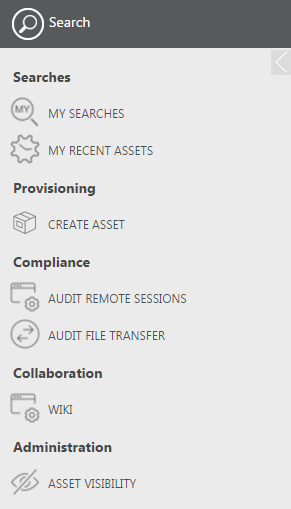
- Confirm that ThingWorx Remote Access and Control has been installed by ensuring that the Compliance menu appears.
- From the Assets table, double-click PTCDemoRemoteAccessThing.
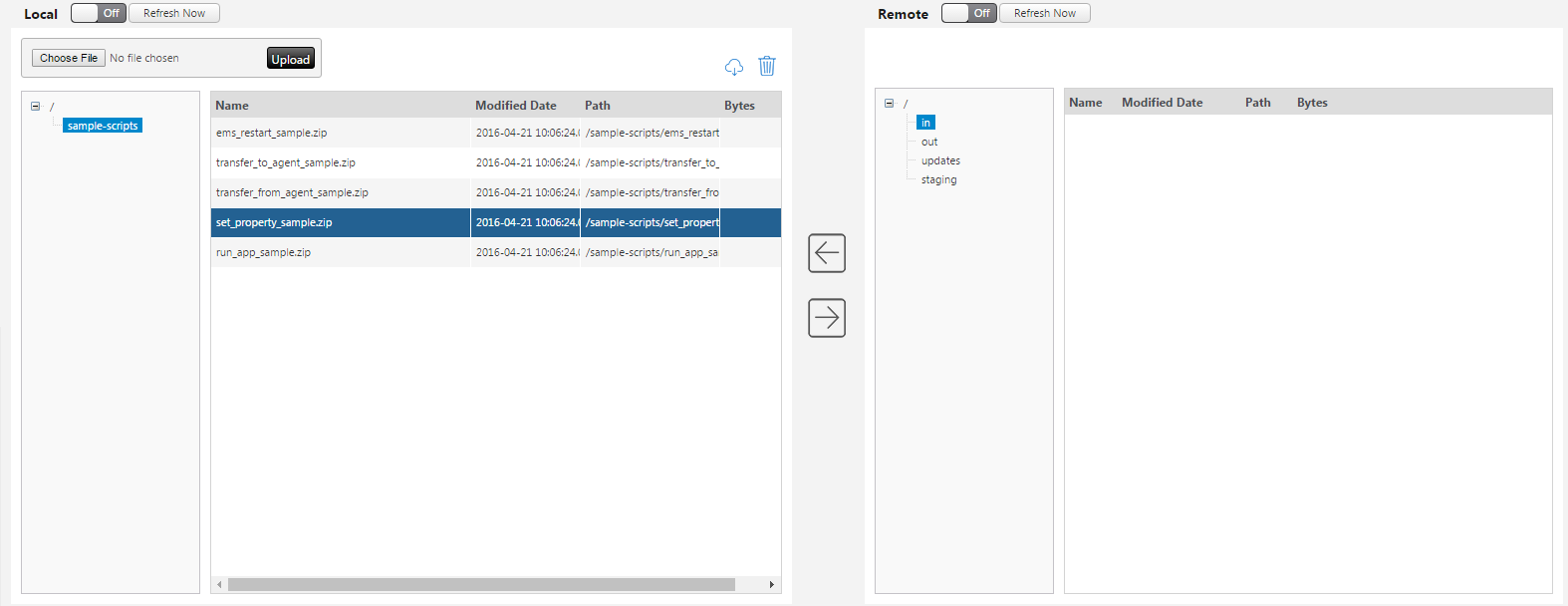
- Under Remote Access, click File Transfer.
- In the Local directory on the left, click sample-scripts and select one of the .zip files.
- In the Remote directory, select in, and then click
 to transfer the selected file..
- Once the transfer is complete, a message will appear in the Recent Transfers table.
- Under Remote Access, click Remote Connection.
- Click Connect.