Administration
The Administration section allows you to configure settings in the ThingWorx Asset Manager.
Asset Visibility
Use the following steps to control access to the ThingWorx Asset Manager application:
- Under Administration, click Asset Visibility.
- From the Select an asset type drop-down menu, select one of the thing templates.
- Give visibility to the correct organization units and divisions by clicking on the name of each one and then clicking the
 icon.
icon.
Asset Search Configuration
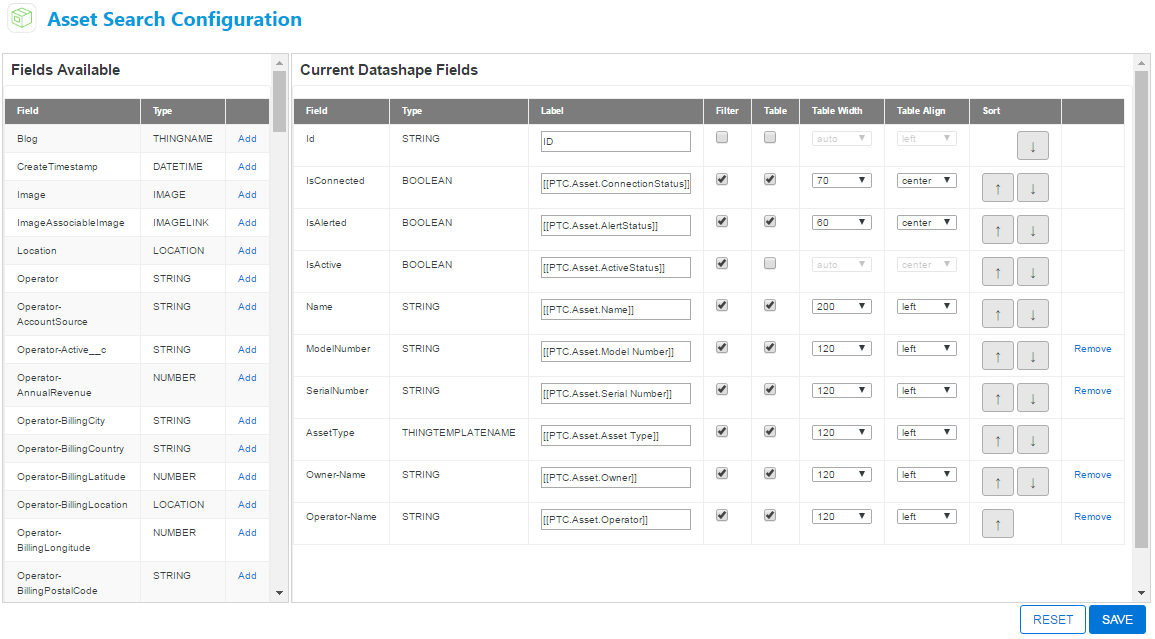
You can configure the asset search criteria and Assets table to include desired filters and columns in the search table.
- Click Add next to the field name in the Fields Available table to move the field to the Current Datashape Fields table.The Fields Available table displays the mapped attributes of resource providers (with Role:Ownables tag) that are associated with the ThingWorx Asset Manager. For more information, see Resource Providers and Attribute Mapping.
- If desired, enter a new label name using the Label field. By default, the label field contains localized tokens.
- Select the checkbox in the Filter column for fields you want to be available to search filters.
- Select the checkbox in the Table column for fields you want display as columns in the Assets table.
- Specify the width and alignment of the columns using the Table Width and Table Align columns.
- Use the arrows in the Sort column to reorder the fields as desired.
- Click Remove in the Current Datashape Fields table to remove a specific field from the filters and the Assets table.
- Click Save once you have completed configuration.